Global
Supplier and commercial invoices
Extract supplier identity, bill-to and ship-to details, currency, payment terms, purchase-order references, tax, totals and line items from international layouts.
By Dynamite Docs. Published . Updated .
Invoice data extraction is the recurring accounting workflow for supplier batches. If you are testing one document, start with [free invoice OCR](/extract-invoice-data-with-ai). For a batch, Dynamite Docs turns supplier PDFs, scans and photos into header [fields and line-item rows](/convert-invoices-to-excel-with-ai), then keeps each source beside the result for checking. Review invoice numbers, dates, purchase-order references, tax and totals before the data reaches bookkeeping. Saved corrections can guide a returning supplier layout, but every new invoice still supplies its own values. Export the accepted result as CSV, XLSX, JSON or Google Sheets, depending on the receiving process.
Try an invoice or compare its storage, processing, and export limits.
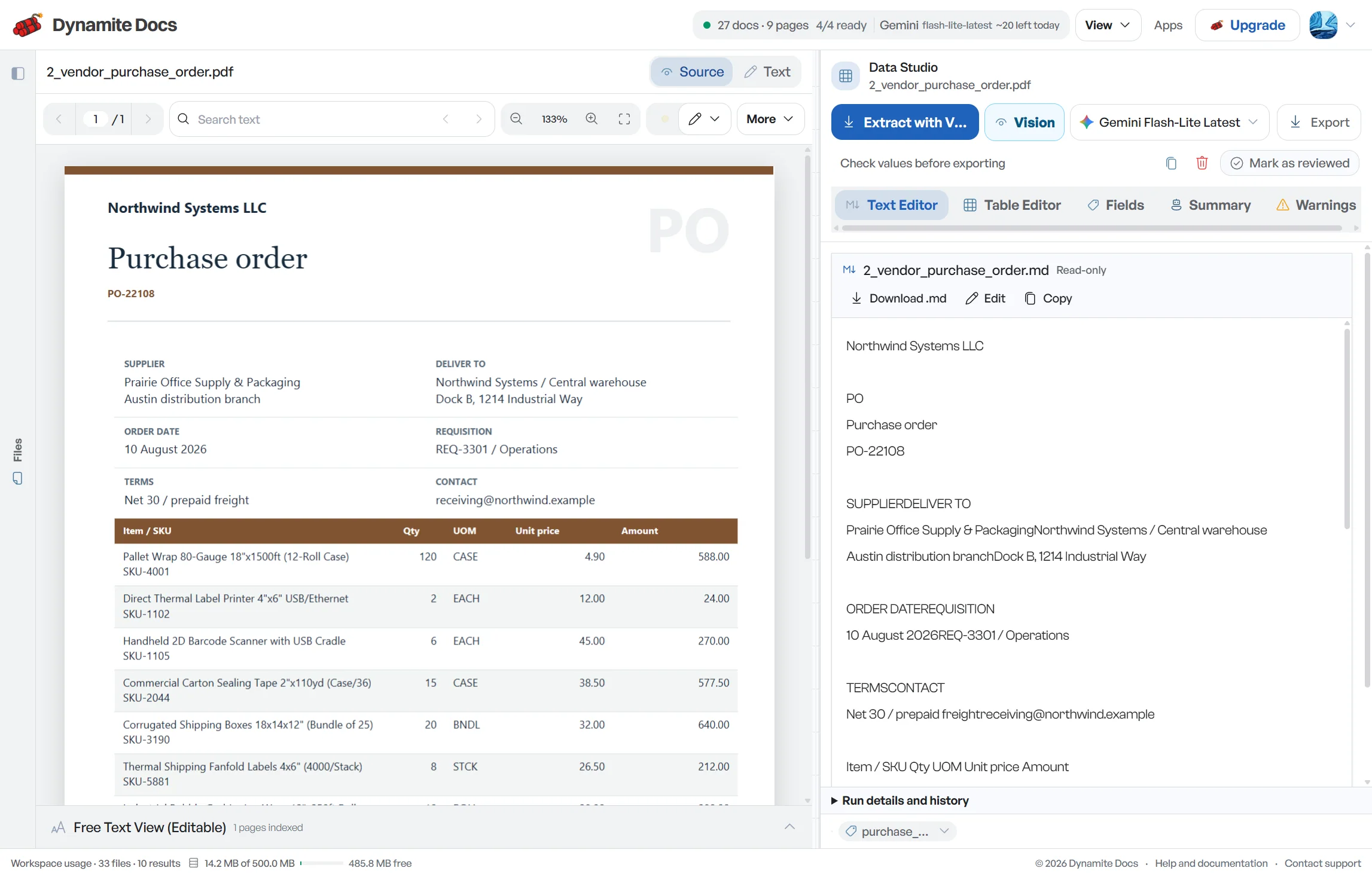
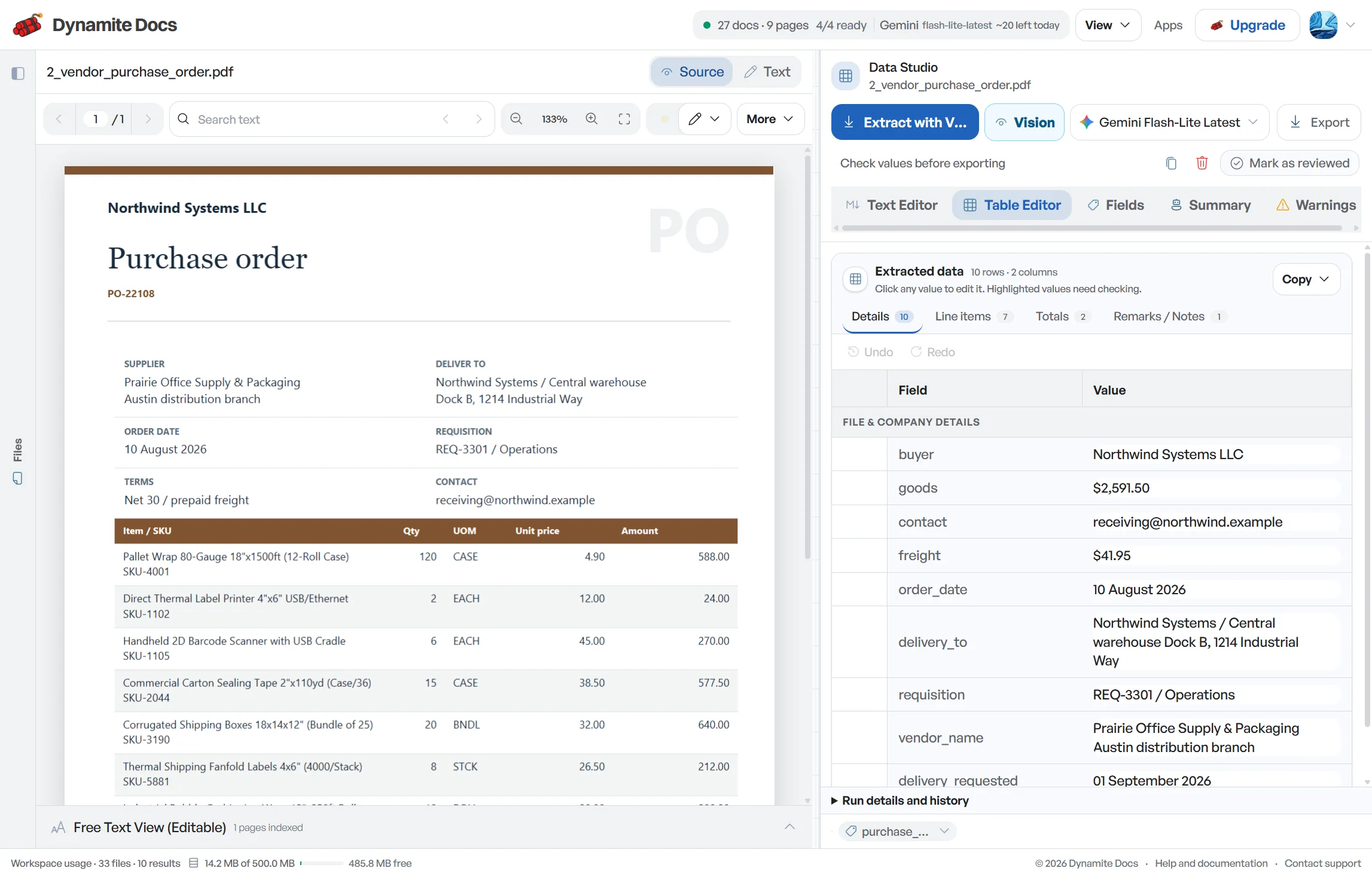
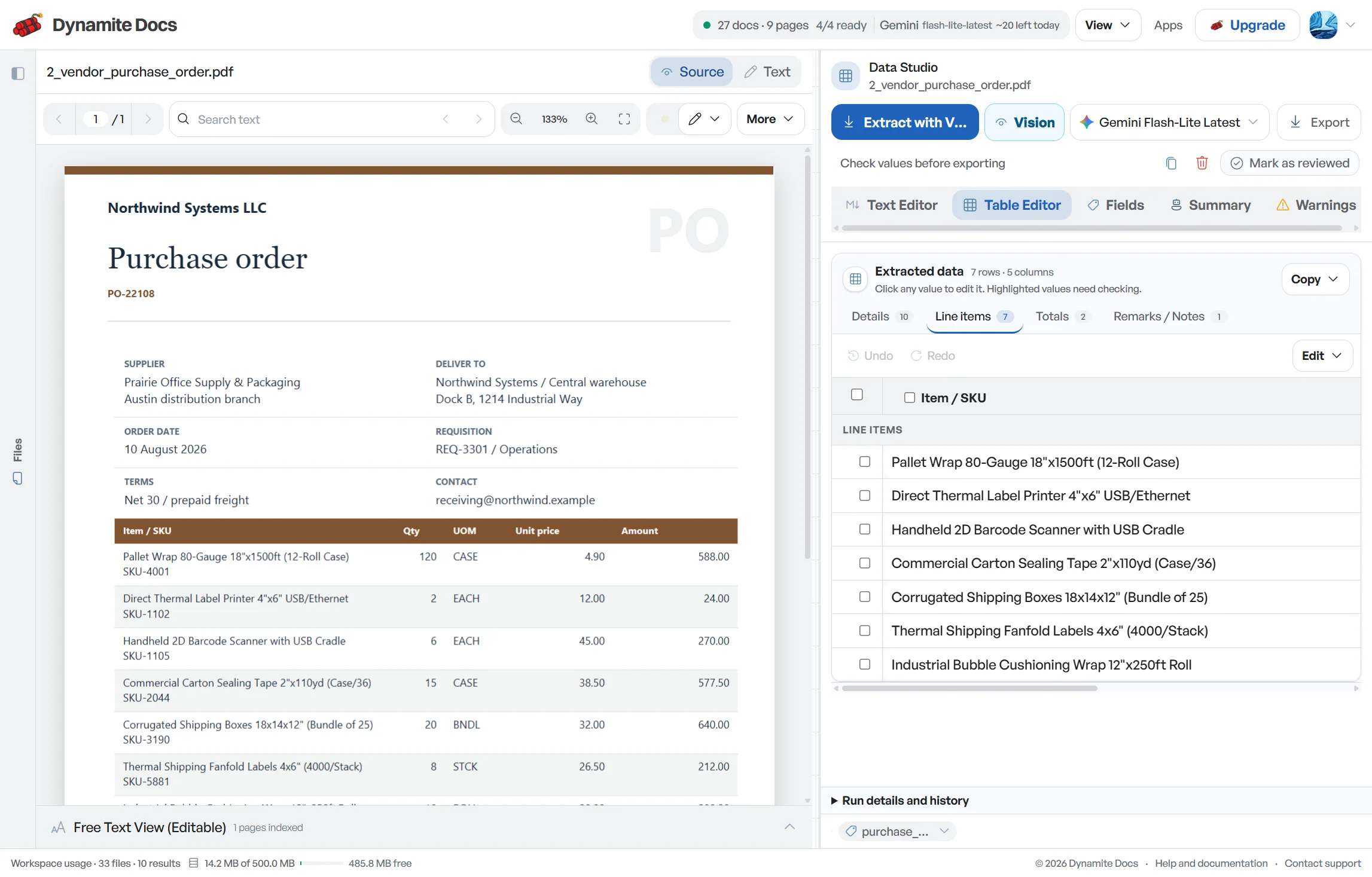
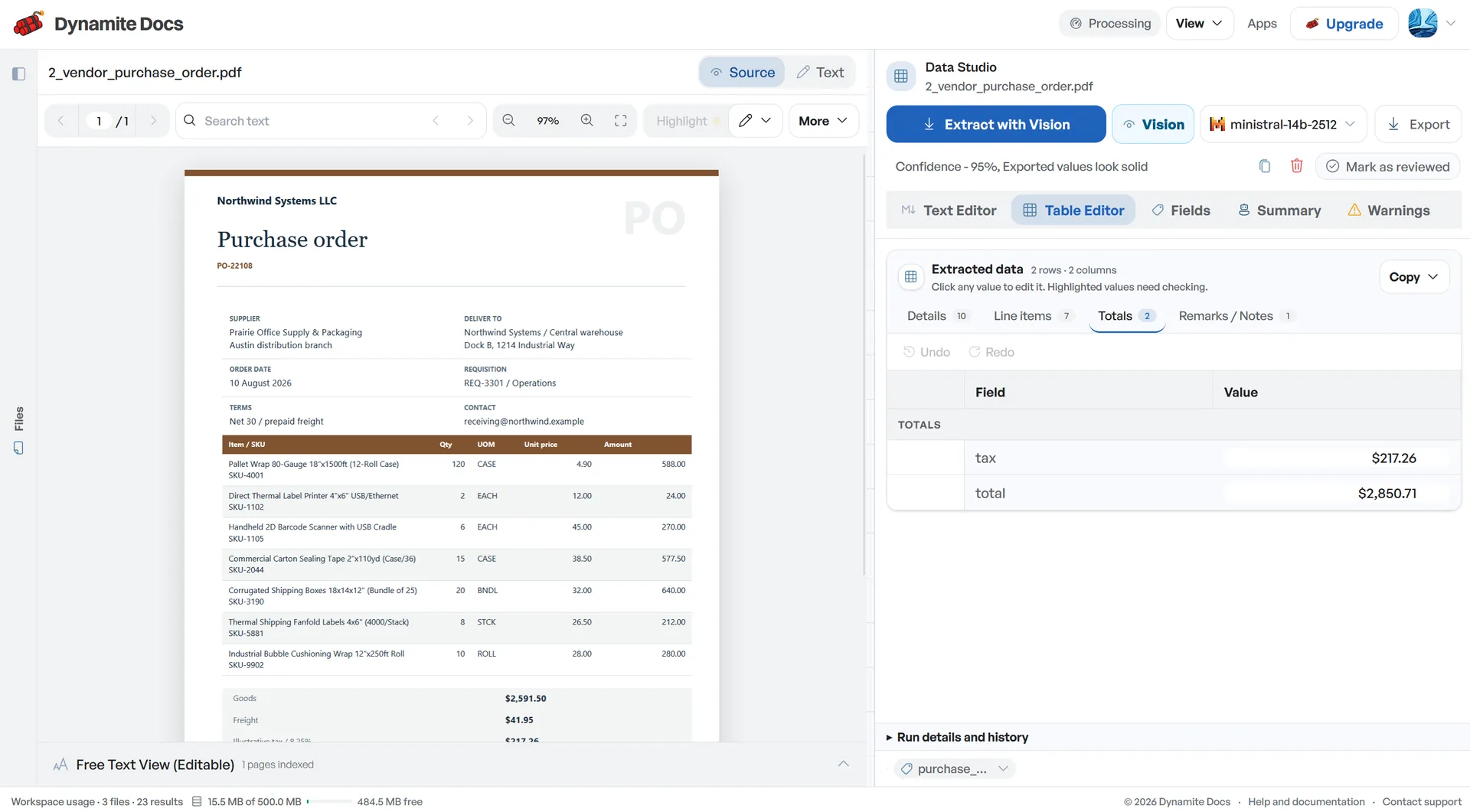
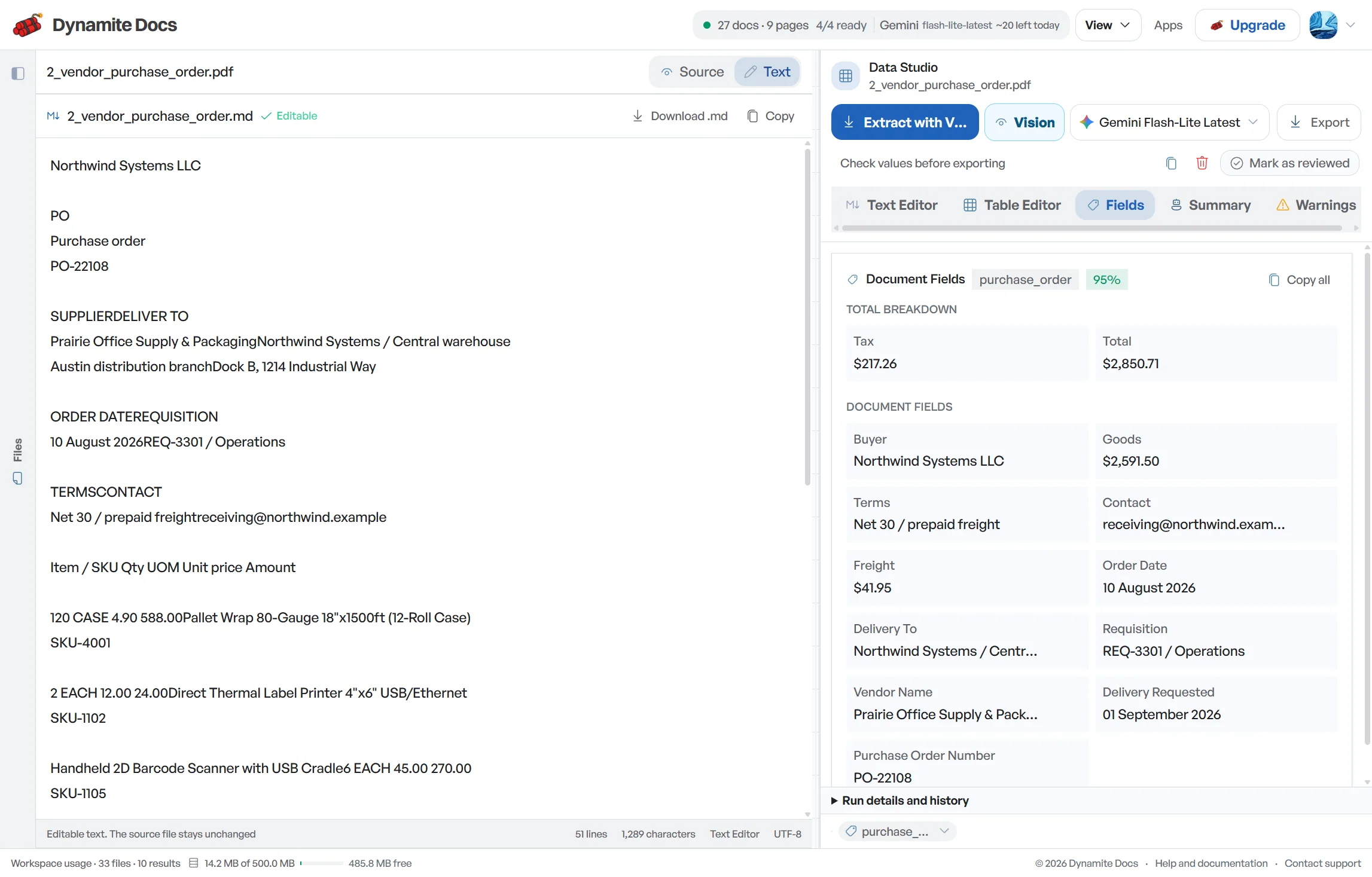
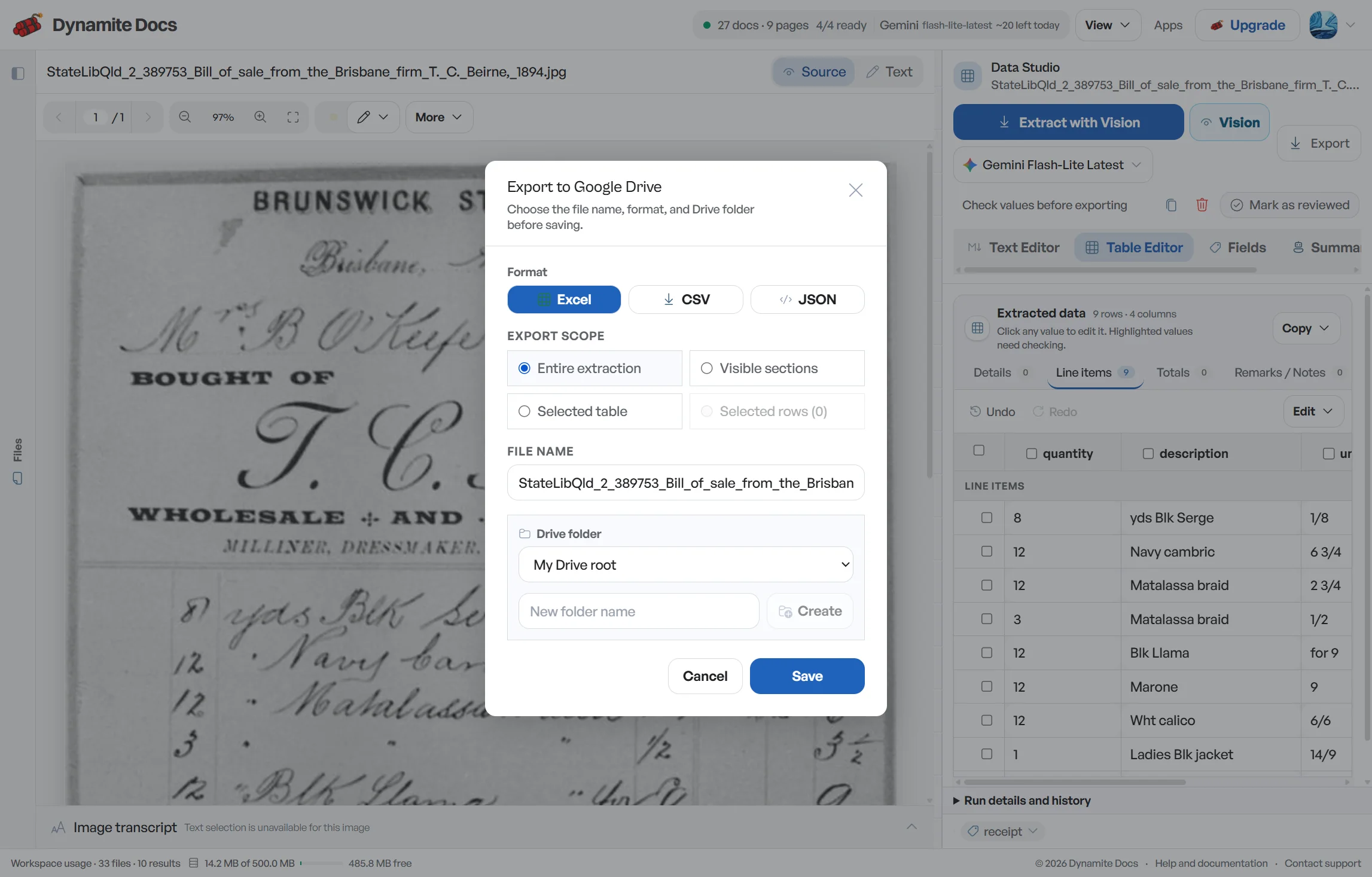
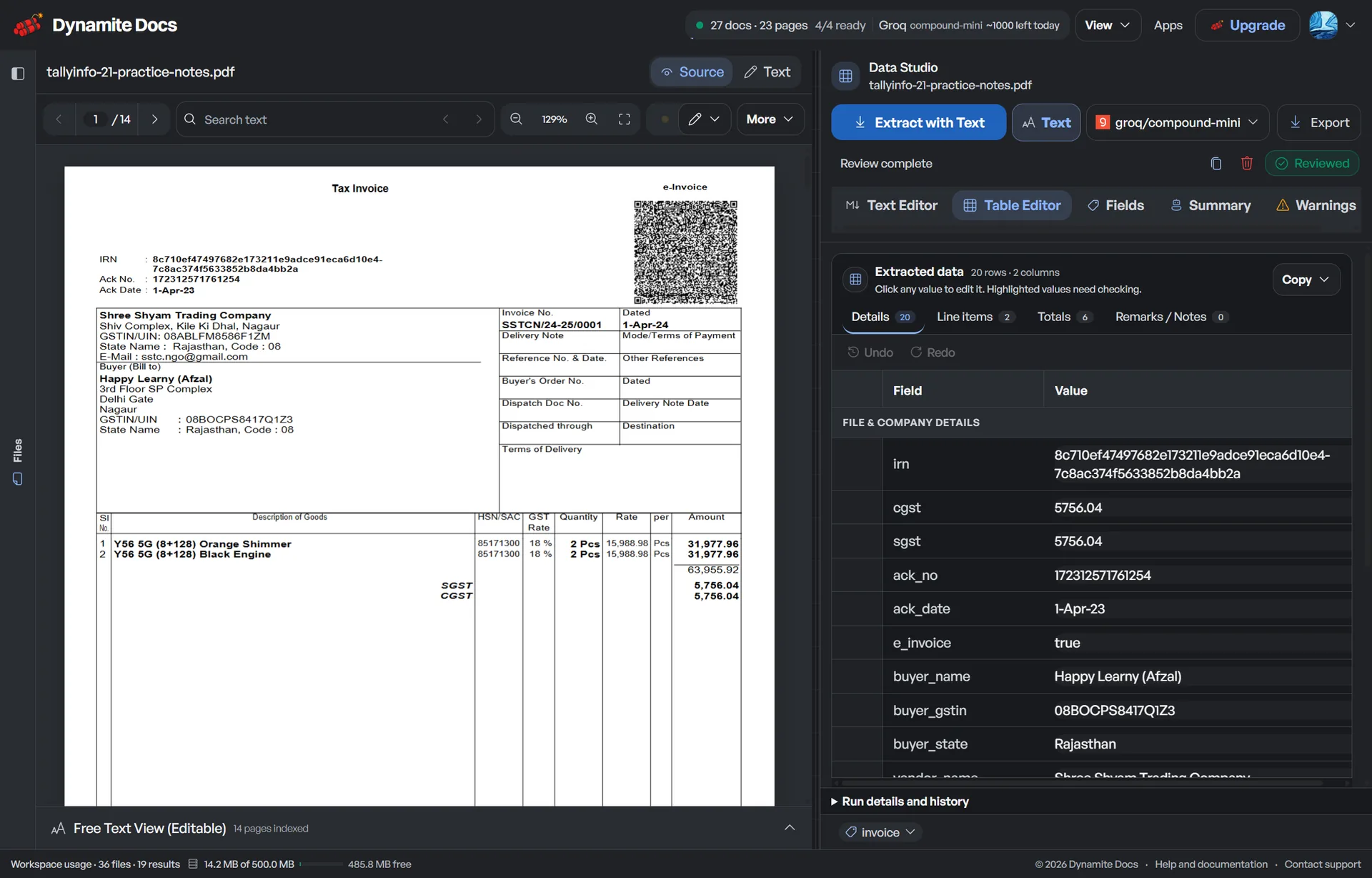
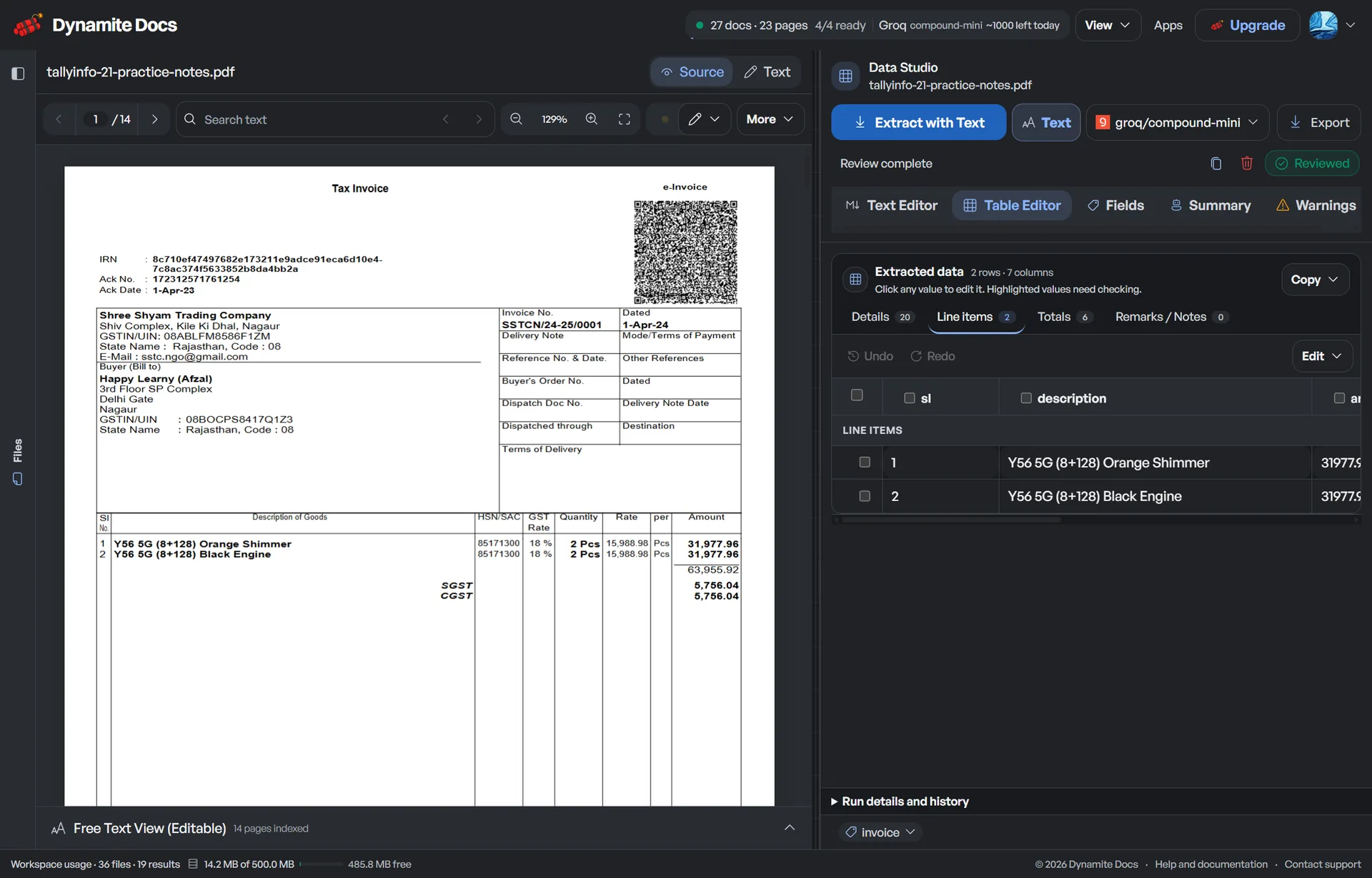
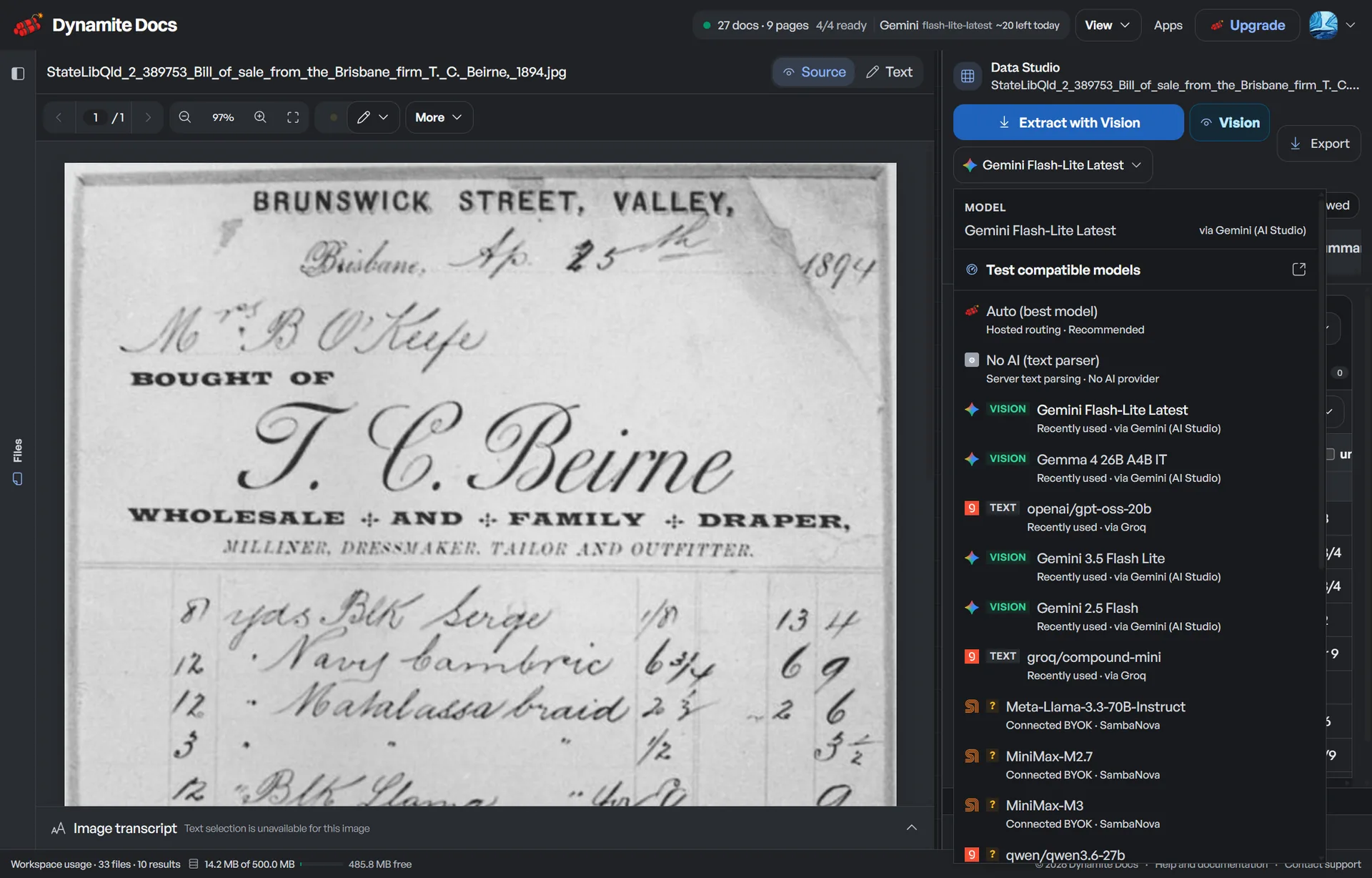
Invoice layouts vary by country, tax system and business process. Choose the columns your books need, then check how each supplier expresses those values instead of forcing every document into one rigid template.
Global
Extract supplier identity, bill-to and ship-to details, currency, payment terms, purchase-order references, tax, totals and line items from international layouts.
India
Capture supplier and buyer GSTINs, invoice date and number, place of supply, HSN or SAC, taxable value, CGST, SGST, IGST and invoice total for human review.
India e-invoicing
Request IRN, acknowledgement details, GST identifiers, item tax values and totals from e-invoice PDFs and readable QR content.
Accounts payable
Structure recurring bills for AP review with vendor, PO, due date, terms, line items, tax and amount payable.
Accounts receivable
Extract customer details, invoice references, supply dates, product or service lines, tax and receivable totals from outgoing invoices.
Other layouts
Define the fields you need for service invoices, utility bills, pro forma invoices, credit notes and other invoice-like documents, then verify the result against the source.
Digital PDFs may provide a useful text layer. Scans and photos need visual extraction. Choose hosted processing, your own provider account, or local Ollama where the plan supports it, then use the same source-first review workflow.
Included with every plan
Choose a hosted model and upload. Each successfully processed page uses one PE; failed pages use none. Free includes 25 PE a month, while paid plans increase the allowance and per-document limit.
Provider free tier
Connect your own key on any signed-in plan. If that provider offers free API quota, its current limits and availability apply. Free and Hobby own-key pages still use the plan's monthly PE allowance.
Paid provider account
Use OpenAI, Anthropic, Gemini, Mistral, Groq, OpenRouter or another supported provider. The provider bills your account. Pro and Ultra BYOK runs do not draw from Dynamite Docs PE.
Hobby, Pro and Ultra
Use the signed loopback companion to send model inference to Ollama on your computer. Your Dynamite Docs account and workspace remain hosted.
The fields vary by invoice. For the sample below, Dynamite Docs would return these values with a confidence score for each field:
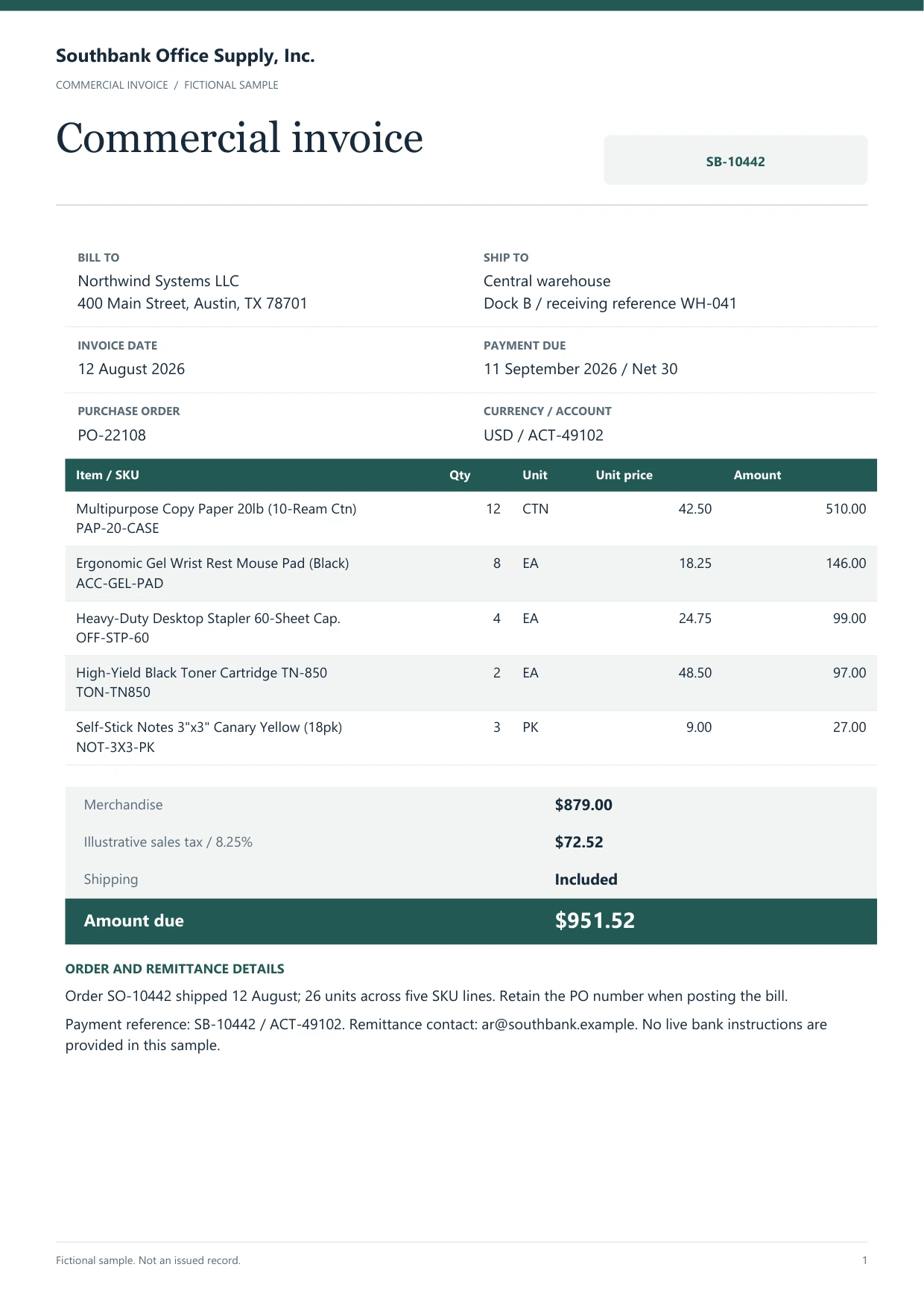
Sample data. Not a real invoice or filing record.
Here are all five line items from the sample invoice. The rows add up to the $879.00 subtotal shown on the source:
| Vendor | Invoice # | Date | Line item | Qty | Unit price | Line total |
|---|---|---|---|---|---|---|
| Southbank Office Supply | SB-10442 | 2026-08-02 | Printer paper, A4 | 20 | $12.50 | $250.00 |
| Southbank Office Supply | SB-10442 | 2026-08-02 | Black toner cartridge | 4 | $95.00 | $380.00 |
| Southbank Office Supply | SB-10442 | 2026-08-02 | USB-C cable, 6 ft | 10 | $4.50 | $45.00 |
| Southbank Office Supply | SB-10442 | 2026-08-02 | Mesh desk organizer | 6 | $18.00 | $108.00 |
| Southbank Office Supply | SB-10442 | 2026-08-02 | XL mouse pad | 8 | $12.00 | $96.00 |
Check that line-item totals plus tax reconcile to the invoice total.
The export is structured data, not a posted transaction in accounting software.
Reviewed by Dynamite Docs content team. Last verified 2026-09-30.
An invoice can be easy to read and still be awkward to post. Freight may sit inside the subtotal or below it. A credit may appear as a negative line, a discount, or a note near the total. Payment terms such as Net 15 also require a date calculation if the document does not print a due date. Extraction can propose the values, but the reviewer must decide what the document actually means for the books.
Check identity before arithmetic. Confirm the supplier, invoice number, invoice date and purchase-order reference so a correct total does not end up attached to the wrong record. Next, compare line quantities and unit prices with their extensions. Check whether tax is inclusive or added, account for freight and discounts, and make sure the line items reconcile to the displayed subtotal and amount due.
Duplicates deserve their own check. A repeated invoice number from the same supplier may be a second upload, a revised invoice, or a genuine document from another legal entity. Keep the source file and review history with the extracted row until that difference is settled. OCR cannot resolve it by reading the page more confidently.
Start with one recurring supplier and one export destination. If the columns suit your books and the totals tie out, add the next layout. Save a correction only when it describes a repeatable placement or label, not when it fixes a one-off smudge. That keeps future invoice processing useful without teaching the workflow the wrong lesson.
Hosted processing spends one PE for each page completed successfully. Failed pages cost no PE.
Every plan can use a provider key from OpenAI, Anthropic, Gemini, Mistral, Groq and other supported providers. Free and Hobby own-key runs use monthly PE; Pro and Ultra runs do not. BYOK has no per-document tier cap, though provider and file-size limits still apply.
Free users keep source files in the browser. Paid plans can store files in Dynamite Docs, and the local Ollama companion is available on Hobby, Pro and Ultra.
Yes. Connect your own API key on any signed-in plan. If the provider includes free API quota, that quota can be used for extraction, subject to the provider's current limits. Free and Hobby BYOK pages still count against monthly PE; Pro and Ultra BYOK pages do not.
You can upload digital or scanned PDFs; JPG, JPEG, PNG, WebP, TIFF, GIF and AVIF images; common Office and OpenDocument files; and EML, CSV, TSV, TXT, HTML, RTF or JSON files. Clear, upright source pages produce the easiest review.
Yes. Ask for GSTINs, place of supply, HSN or SAC, taxable value, CGST, SGST, IGST, IRN and totals as needed. Tax-sensitive fields still need a person to verify them against the source and applicable records.
Yes. A vision-capable hosted or BYOK provider can read scans and photos. Faint print, glare and cropped edges can lower confidence, so compare flagged fields with the source before export.
Yes. Connect QuickBooks Online or Xero from the workspace, review the customer or supplier, accounts, taxes and line items, then create the invoice or bill. You can still export CSV or XLSX when the receiving workflow needs a file.
No. You can process the first invoice without building a supplier template. The extractor proposes key-value fields and tabular line items from the document itself. If you correct a field, Dynamite Docs can reuse that pattern when a matching layout appears later.
Every field includes a confidence indicator. If a number or date is blurry, the system highlights it so you can review and edit it inline before exporting.
Open the document extraction workspace, no credit card required.