Free document tool
Free reader to extract tabular images and scans into CSV rows
Convert a table image to CSV, with every row open for review first.
Upload one table image, photo, screenshot or scan. AI OCR turns the visible cells into a flat set of CSV rows. Check cropped edges, blank values, commas, dates and amounts beside the picture before you download the file.
Content reviewed .
CSV, Excel and JSON downloads are included on Free after signup, within Free plan limits. See Free limits.
Anonymous originals stay in browser storage, not cloud file storage. Extraction may send document content to the selected AI provider.
Upload a table image. JPG, PNG, WebP, GIF, TIFF or AVIF image files are supported up to 50 MB.
28-day Free trial · 25 page-equivalents · 5 hosted pages/document
How does image to CSV conversion work?
Dynamite Docs uses AI OCR to read a table from a photo, scan, or screenshot. Review the headers and rows beside the image, then download one flat CSV table.
CSV preserves reviewed values and quoting, but not sheets, merged headers, cell types, or page layout. Open the file in the receiving importer before relying on it.
How do you extract tabular data from an image into a CSV file?
Use Image to CSV when you have a photo, scan, or screenshot of a table that needs to be imported directly into a database or spreadsheet as a portable CSV file. Photograph the table directly from above to avoid perspective distortion, and ensure all row borders and column headers remain fully legible.
After extraction, verify the column header names, total row count, and control totals against the source image. Check that descriptions containing commas or quotes are properly escaped, confirm that blank cells have not displaced values, and open the generated CSV in a plain-text editor to ensure delimiter and character encoding accuracy.
Use Image to Excel when you need separate sheets, formulas, and typed numeric formatting. Choose Image to JSON when downstream systems expect nested JSON objects and arrays. If your source document is already in PDF format, use PDF to CSV for faster, direct table processing. For high-volume repeating layouts, automate intake with a saved workflow.
Compare monthly processing allowances and plan limits or read the step-by-step extraction and review guide.
Check document extraction results with Dynamite Docs with these sample files
German handwritten invoice
Open image Download image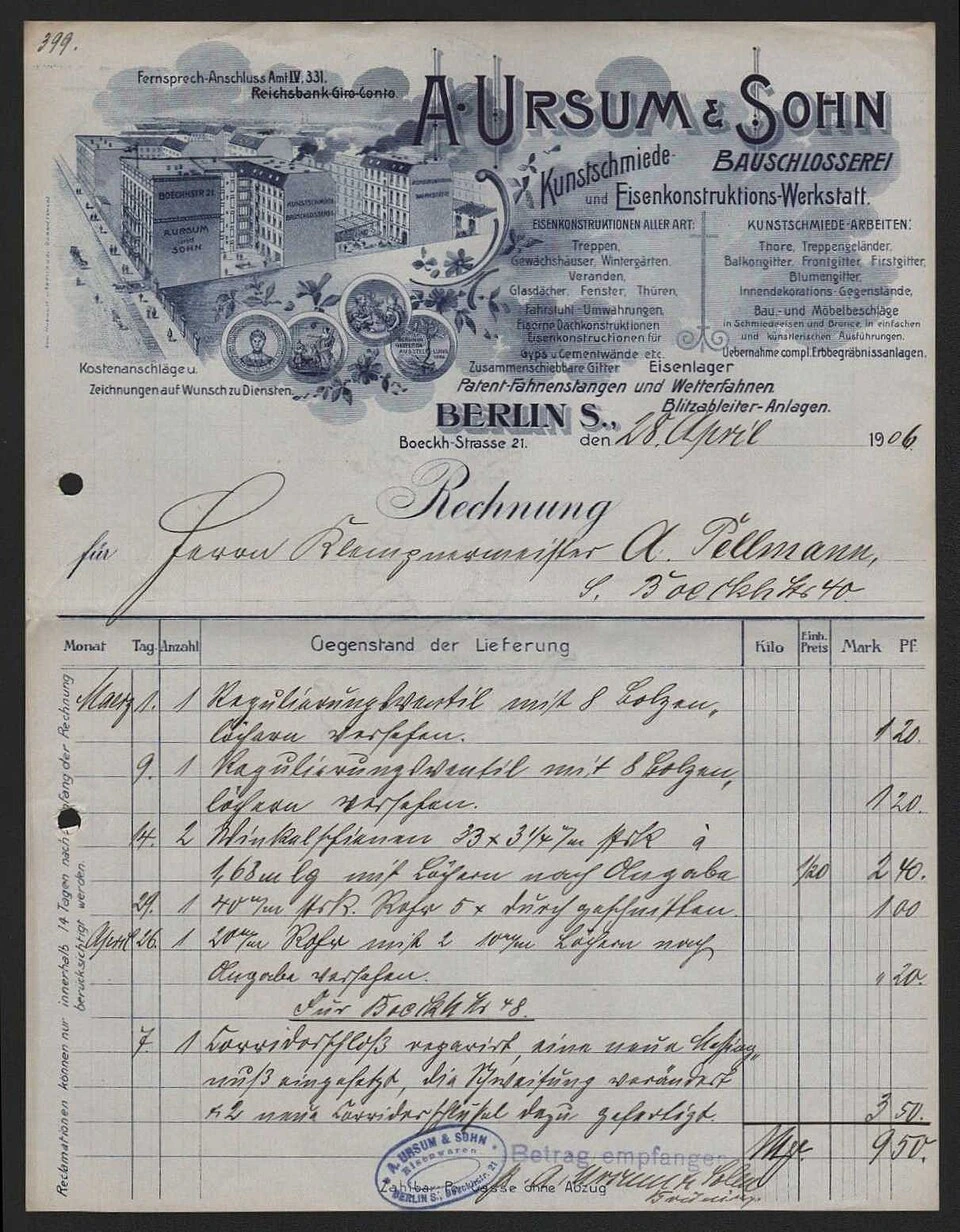
The output stays beside the evidence
Dynamite Docs keeps the source and structured result in one review workspace. Infer document fields and repeating rows, correct values against the page, inspect warnings and export the accepted result.
This is more than a plain OCR transcript. The result separates fields, line items, totals and notes so a person can check the structure before sending data to Excel, CSV, JSON, Google Sheets, Google Drive, a webhook or the API.
Connect an AI provider and get a key
Choose a hosted model or connect your own provider key for the extraction.
Provider keys are encrypted before storage. Compare processing options or follow the setup guide.
What the CSV-ready image rows contains
- The first CSV record contains one reviewed name for each output column, followed by one consistent record per detected table row.
- Commas, quotes, and line breaks inside source values use CSV escaping so they do not silently create extra fields during import.
- The source image remains available during review, while the download contains only the flat values selected for the table.
- Report-level context such as date, location, department, currency or unit may need to be repeated in a flat column. Add it deliberately when the image shows it outside the table.
- Identifiers should remain text so leading zeroes survive. Numeric values still need a reviewed sign and decimal convention before a spreadsheet or database assigns a type.
Flatten the image into consistent CSV records
CSV needs one stable set of columns. Check that section headings, notes, subtotals, and wrapped lines have not become ordinary records before download.
- Header record: date, reference, description, amount
- Data records: One visible item per CSV row
- Quoted values: Descriptions that contain commas
- Blank values: Empty field between two delimiters
- Numbers: 1284.50
- Source context: Image remains beside the review table
Extract first, then decide what to keep
- Upload and extract one table image without creating an account.
- Review low-confidence values beside the source document.
- CSV, Excel and JSON downloads are included on Free after signup, within Free plan limits.
- Starter and above add stored files, batch jobs and connected exports. Email intake requires Pro or Scale. File and processing limits depend on your plan.
Compare batch-processing plans or read how extraction and review work.
A flat file needs a flat decision
Choose the one table that belongs in the CSV. Remove titles, footnotes, subtotals, and annotations that should not become records. Then open the download in the destination spreadsheet or importer and verify its delimiter and type handling.
Cases that need manual review
- A photograph with a steep angle can merge neighboring cells or make the last column too narrow to read reliably.
- Subtotals, annotations, and notes aligned beneath a table can look like ordinary records until a reviewer removes them.
- A table with nested column groups needs repeated context columns or a different output because CSV cannot represent merged headers.
- A cropped edge can remove a header or final column while leaving the remaining table plausible enough to overlook the loss.
- Spreadsheet software can auto-convert long references, dates and leading-zero codes even when the CSV file preserved their characters.
- Import a photographed table into a database
- Convert a dashboard screenshot into analysis rows
- Digitize a paper list without retyping each record
Read the image OCR guide for photo, screenshot, scan, and table quality before choosing an output format.
Choose the page for the job
Use Image to CSV when you have a photo, scan, or screenshot of a table that needs to be imported directly into a database or spreadsheet as a portable CSV file. Photograph the table directly from above to avoid perspective distortion, and ensure all row borders and column headers remain fully legible.
After extraction, verify the column header names, total row count, and control totals against the source image. Check that descriptions containing commas or quotes are properly escaped, confirm that blank cells have not displaced values, and open the generated CSV in a plain-text editor to ensure delimiter and character encoding accuracy.
Use Image to Excel when you need separate sheets, formulas, and typed numeric formatting. Choose Image to JSON when downstream systems expect nested JSON objects and arrays. If your source document is already in PDF format, use PDF to CSV for faster, direct table processing. For high-volume repeating layouts, automate intake with a saved workflow.
Questions about Free reader to extract tabular images and scans into CSV rows
The 28-day Free trial includes 25 page-equivalents per month shared by hosted and own-key processing, 5 hosted pages per document, and 5 documents per day. Anonymous trials have separate daily limits.
Can CSV preserve several tables from one image?
A CSV is one flat table. Select the result table you need, or export separate tables individually instead of combining unrelated column sets.
Will commas in the source text break the file?
The exporter quotes values when CSV rules require it. Review embedded line breaks and test the file in the system that will import it.
Can I convert a phone photo to CSV?
Yes. Photograph the page straight on, include every table edge, avoid glare, and check small numbers against the image before using the result.
How do I protect codes and long identifiers in CSV?
Configure the receiving column as text before import. CSV does not carry cell types, so spreadsheet software may strip leading zeroes, convert a code into a date or display a long identifier in scientific notation. Compare the imported values with the reviewed CSV before continuing.
What checks should I run before a database import?
Confirm the header names, column count, row count, delimiter, encoding, blank-value rule, date convention and decimal separator. Test a small reviewed file, compare totals with the source image and reject rows that do not fit the receiving schema.
More free document tools
- Free AI tool to convert photos, scans, and screenshots to Excel: Turn a table photo or screenshot into real Excel cells, not an image inside a sheet.
- Free tool to parse structured JSON fields from photographed documents: Read fields and tables from an image, then export reviewed JSON.
- Free utility to flatten PDF tables into clean CSV rows for import: Turn one PDF table into a flat CSV without retyping every row.