Free document tool
Free AI tool to convert photos, scans, and screenshots to Excel
Turn a table photo or screenshot into real Excel cells, not an image inside a sheet.
Upload a JPG, PNG, screenshot or scan. AI image-to-Excel OCR rebuilds the visible table as rows and columns and leaves the picture beside it for review. Correct labels, quantities, dates and amounts before you download the workbook.
Content reviewed .
Excel, CSV and JSON downloads are included on Free after signup, within Free plan limits. See Free limits.
Anonymous originals stay in browser storage, not cloud file storage. Extraction may send document content to the selected AI provider.
Upload a table image. JPG, PNG, WebP, GIF, TIFF or AVIF image files are supported up to 50 MB.
28-day Free trial · 25 page-equivalents · 5 hosted pages/document
How does image to Excel conversion work?
Dynamite Docs uses AI OCR to turn a document photo, scan, or screenshot into editable Excel rows. Review cell alignment, dates, signs, and numbers beside the image before download.
The workbook keeps editable cells, not the original page design. Glare, perspective, faint grid lines, wrapped text, and cropped edges can put a value in the wrong row or column.
How do you convert a document photo or screenshot into an Excel spreadsheet?
Use Image to Excel when your source is a document photo, screenshot, or scan (in PNG, JPG, WebP, or TIFF format) and you need the resulting table in a multi-sheet spreadsheet workbook. Capture the image squarely under even light, ensuring table borders, column headers, and bottom totals are fully visible without cropped margins.
During review, compare the extracted rows against the original pixels. Verify column header labels, row counts, decimal points, negative signs, blank cells, and control totals. Ensure that merged section headers or wrapped product descriptions have not shifted numeric amounts into adjacent columns.
Choose Image to CSV when you need a single flat table for database import, or Image to JSON when applications require structured field-value mappings. If the source file is already a digital or scanned PDF, use PDF to Excel to take advantage of native page structures. For recurring batch image processing, create a saved extraction workflow.
Compare monthly processing allowances and plan limits or read the step-by-step extraction and review guide.
Check document extraction results with Dynamite Docs with these sample files
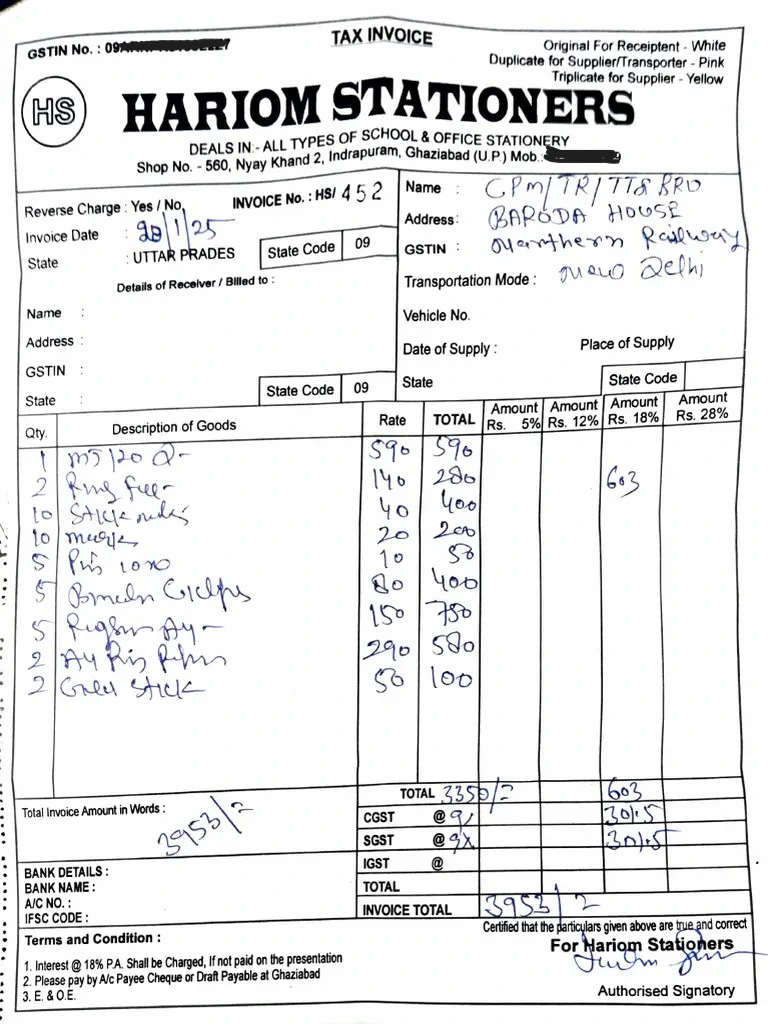
Handwritten bill-book receipt
Open image Download image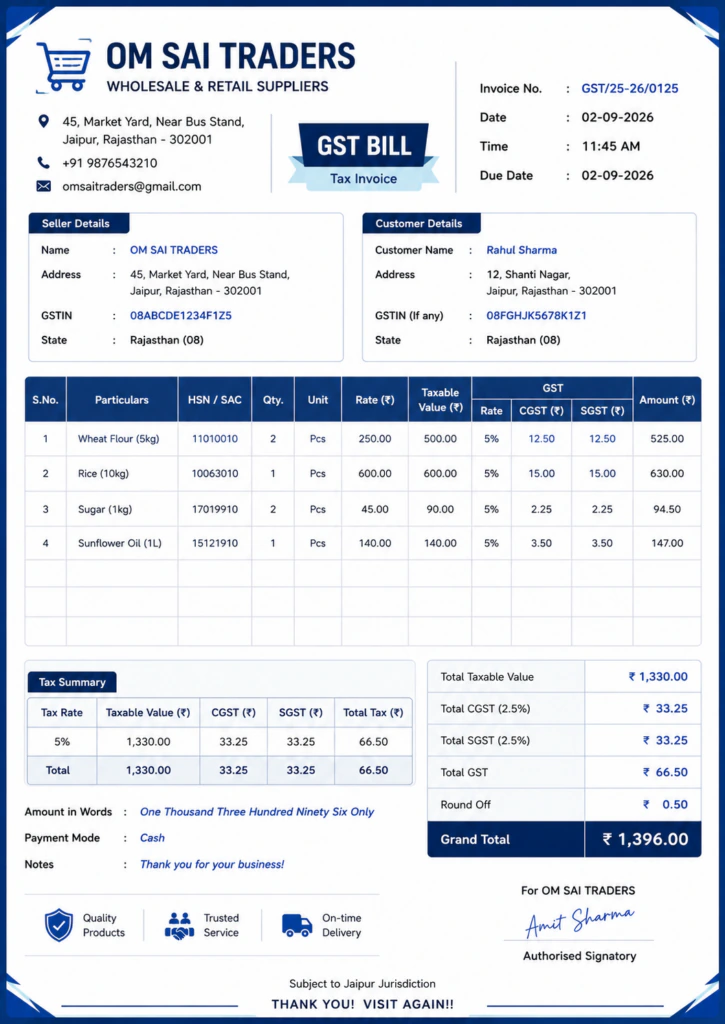
The output stays beside the evidence
Dynamite Docs keeps the source and structured result in one review workspace. Infer document fields and repeating rows, correct values against the page, inspect warnings and export the accepted result.
This is more than a plain OCR transcript. The result separates fields, line items, totals and notes so a person can check the structure before sending data to Excel, CSV, JSON, Google Sheets, Google Drive, a webhook or the API.
Connect an AI provider and get a key
Choose a hosted model or connect your own provider key for the extraction.
Provider keys are encrypted before storage. Compare processing options or follow the setup guide.
What the Excel-ready image data contains
- Excel keeps detected rows and columns in editable cells so the result can be sorted, filtered, totaled, or joined with another worksheet.
- Values confirmed as dates, quantities, and amounts can remain typed cells instead of becoming one block of OCR text.
- Document-level labels such as report title, period, and account name remain separate from the table when they do not belong in every row.
- The workbook favors usable records rather than a visual copy of the image. Decorative colors, borders and logos are omitted so reviewers can focus on headers, rows, types and control totals.
- Source text can remain available beside normalized cells. This is useful when a date is ambiguous, an identifier has leading zeroes or a currency separator must be interpreted before numeric conversion.
Review image rows before Excel export
The workbook should contain usable cells, not a picture pasted into Excel. Check the table boundary, column names, types, and totals against the source image. Confirm that every visible source row appears once and that no annotation, subtotal or page label has become a data record.
- Table headers: SKU, description, quantity, unit cost
- Rows: One record per visible table line
- Dates: 2026-09-07
- Quantities: 24
- Amounts: 1,284.50
- Blank cells: Preserved without shifting later values
- Document fields: Report name and reporting period
Extract first, then decide what to keep
- Upload and extract one table image without creating an account.
- Review low-confidence values beside the source document.
- Excel, CSV and JSON downloads are included on Free after signup, within Free plan limits.
- Starter and above add stored files, batch jobs and connected exports. Email intake requires Pro or Scale. File and processing limits depend on your plan.
Compare batch-processing plans or read how extraction and review work.
Check the picture and the spreadsheet
Confirm that every visible row reached the workbook, numeric cells have the right sign and decimal separator, and wrapped text did not create a second record. A clean-looking sheet can still contain an OCR mistake.
Cases that need manual review
- A screenshot cropped through a header or final row removes context that the extractor cannot reconstruct.
- Perspective distortion can make one visual row cross column boundaries, especially near the edge of a phone photo.
- Merged headings, faint grid lines, and wrapped descriptions can create extra columns or attach a value to the wrong record.
- Glare through a decimal point or minus sign can produce a plausible but materially different amount.
- A total printed close to the table may be treated as another record and counted twice in later spreadsheet formulas.
- Move a screenshot of a report into Excel
- Digitize a photographed stock or price sheet
- Recover an editable table from a scanned image
Read the image OCR guide for photo, screenshot, scan, and table quality before choosing an output format.
Choose the page for the job
Use Image to Excel when your source is a document photo, screenshot, or scan (in PNG, JPG, WebP, or TIFF format) and you need the resulting table in a multi-sheet spreadsheet workbook. Capture the image squarely under even light, ensuring table borders, column headers, and bottom totals are fully visible without cropped margins.
During review, compare the extracted rows against the original pixels. Verify column header labels, row counts, decimal points, negative signs, blank cells, and control totals. Ensure that merged section headers or wrapped product descriptions have not shifted numeric amounts into adjacent columns.
Choose Image to CSV when you need a single flat table for database import, or Image to JSON when applications require structured field-value mappings. If the source file is already a digital or scanned PDF, use PDF to Excel to take advantage of native page structures. For recurring batch image processing, create a saved extraction workflow.
Questions about Free AI tool to convert photos, scans, and screenshots to Excel
The 28-day Free trial includes 25 page-equivalents per month shared by hosted and own-key processing, 5 hosted pages per document, and 5 documents per day. Anonymous trials have separate daily limits.
Can I convert a screenshot to Excel?
Yes. Keep the full table visible and use the original screenshot. Small text, aggressive compression, and cropped headers increase the amount of review needed.
Does the workbook preserve the image layout?
No. The goal is editable table data. Decorative layout, colors, pictures, and merged visual blocks are not reproduced as a page design.
Which image formats can I upload?
The tool accepts JPG, JPEG, PNG, WebP, GIF, TIFF, and AVIF images. Use the clearest original file rather than a compressed copy from a messaging app.
How should I verify the Excel result?
Compare headers, row count, dates, identifiers, numeric signs, decimal separators and totals with the image. Inspect wrapped descriptions and blank cells for column shifts. Save the reviewed workbook separately from the first extraction so the accepted result remains clear.
More free document tools
- Free reader to extract tabular images and scans into CSV rows: Convert a table image to CSV, with every row open for review first.
- Free tool to parse structured JSON fields from photographed documents: Read fields and tables from an image, then export reviewed JSON.
- Free tool to turn PDF documents and scans into Excel spreadsheets: Turn a native or scanned PDF into Excel rows without cleaning up a broken copy-paste.