Invoice to Excel
Convert multi-page supplier invoices into clean Excel spreadsheet rows
Build a workbook from the invoice, then check the numbers before it reaches accounting.
Invoices mix supplier details, dates, tax summaries and repeating line items. A useful Excel result keeps those levels separate. Document fields belong on a summary sheet, while each product or service belongs on its own line-item row.
Upload a digital PDF, scanned page, or phone photo. Dynamite Docs proposes the workbook structure without a supplier template, keeps the invoice beside the extracted table, and lets you fix uncertain values before download. Start with the free invoice OCR tool when you first need to test whether a layout or scan can be read.
Convert an invoice. Try one invoice before creating an account. PDF and common image formats are supported.
Invoice inputs you can convert
- Supplier invoice PDFs: Capture header fields, taxes, totals and item rows.
- Scanned invoices: Apply OCR before building the workbook structure.
- Phone photos: Use clear images with the whole invoice visible.
- Multi-page invoices: Keep continued line items under the same invoice record.
What goes into the workbook
Invoice identity and totals become document fields. Products and services become repeating rows with their own quantities, rates, tax and amount.
- Supplier: Northstar Office Supply
- Invoice number: INV-0842
- Invoice and due dates: 2026-08-28 / 2026-09-27
- Purchase order: PO-7714
- Subtotal, tax and total: 2,450.00 / 196.00 / 2,646.00
- Line items: Description, quantity, rate, tax, amount
- Workbook structure: Document Fields sheet + Line Items sheet
From file to reviewed result
- 1. Upload the invoice. Use the original PDF or a clear scan so small line-item text remains readable.
- 2. Separate headers and rows. Create one invoice record plus a line-item table instead of one long text block.
- 3. Reconcile the totals. Check quantity times rate, line extensions, subtotal, tax and amount due against the invoice.
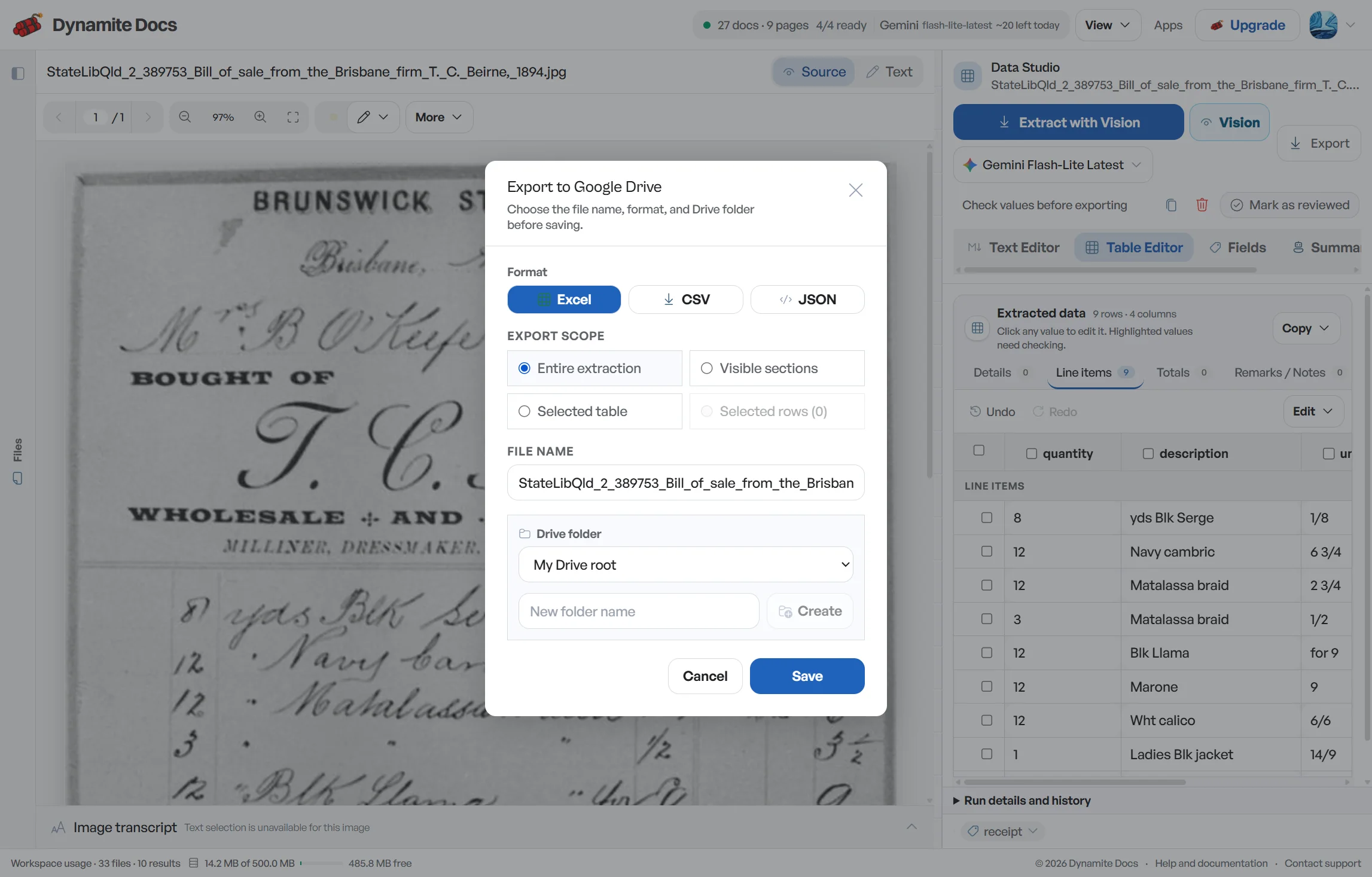
- 4. Download the workbook. Export the reviewed structure to Excel or send the same rows to Google Sheets.
Invoice-specific source review
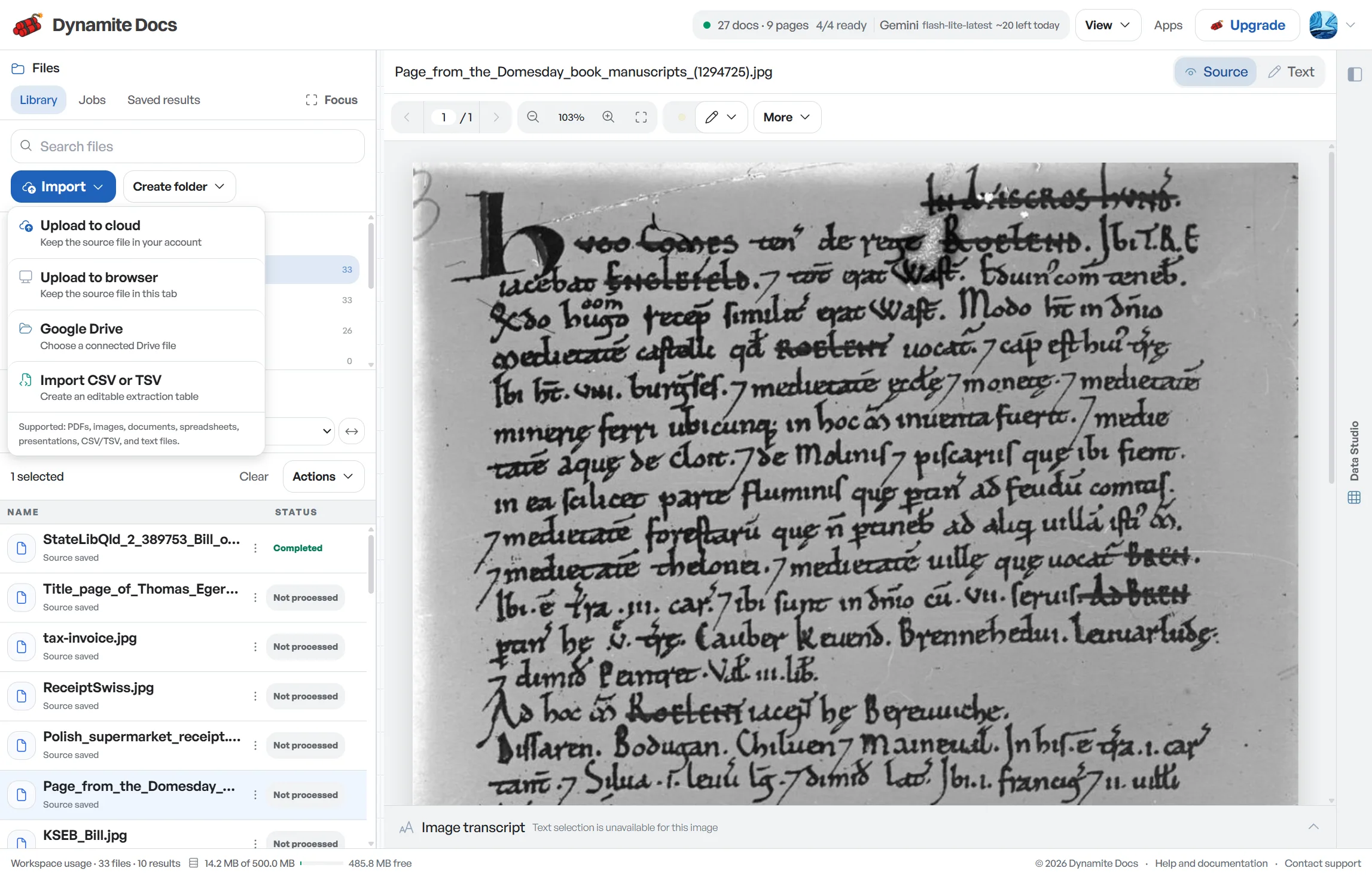
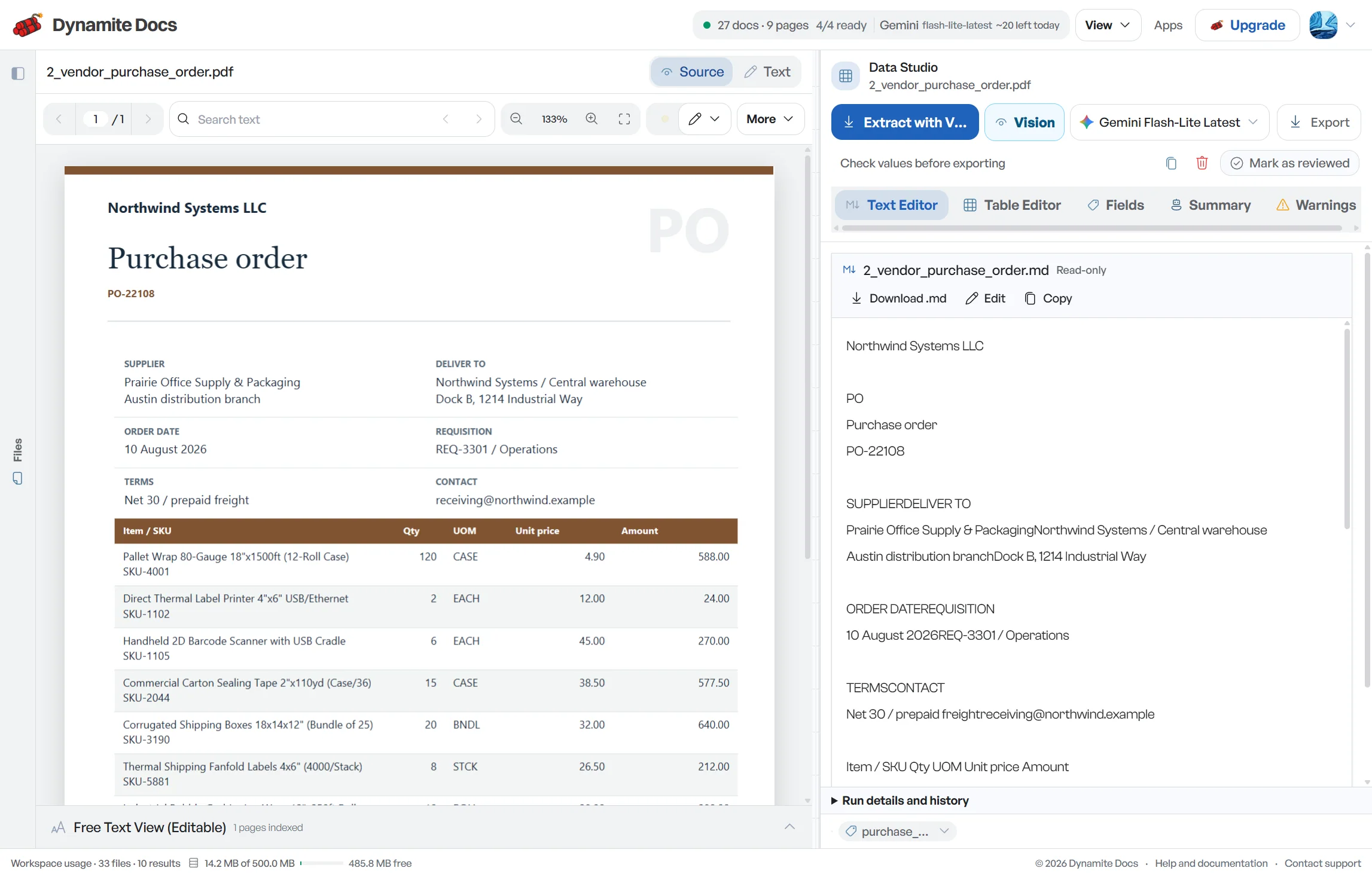
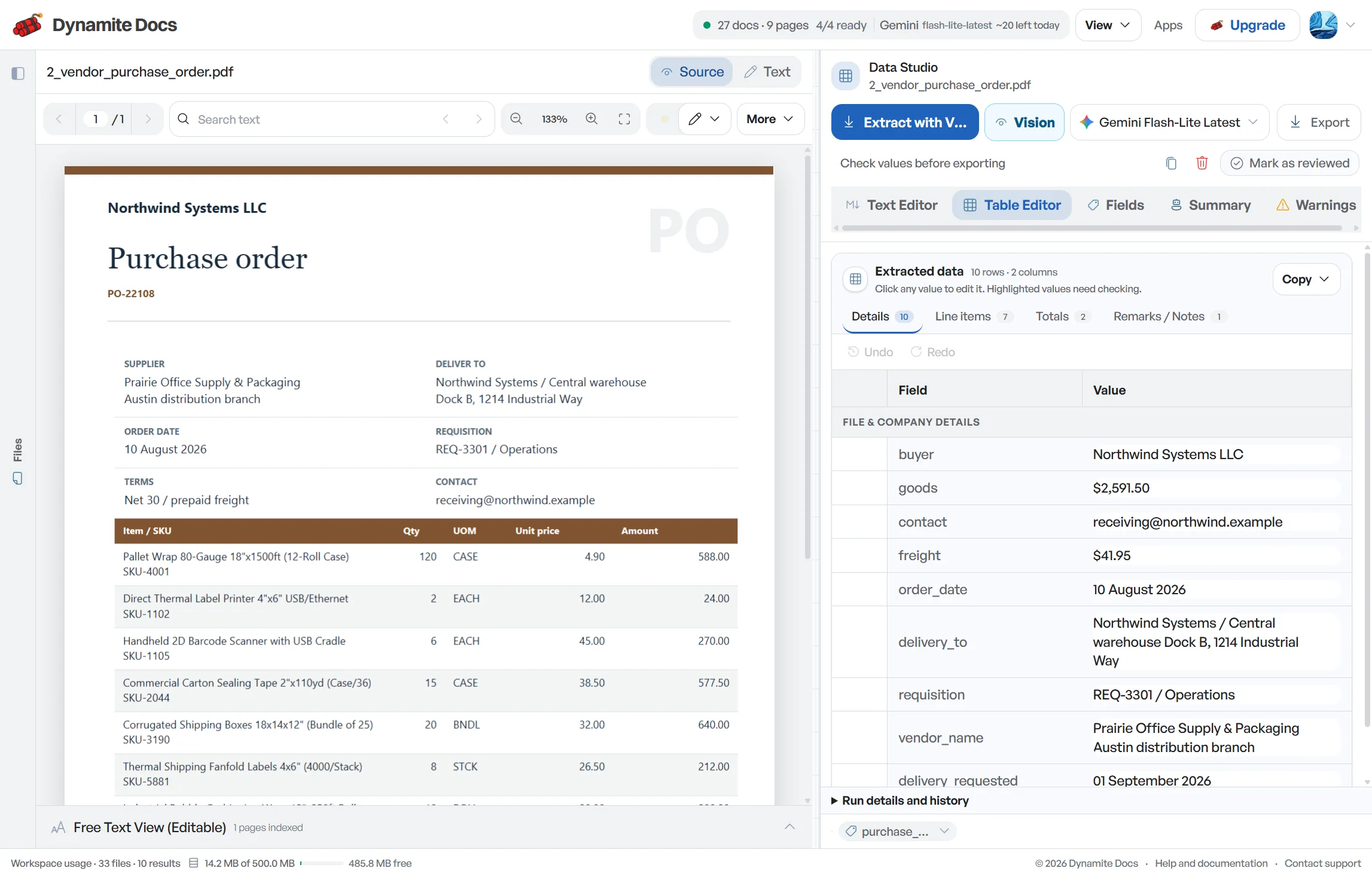
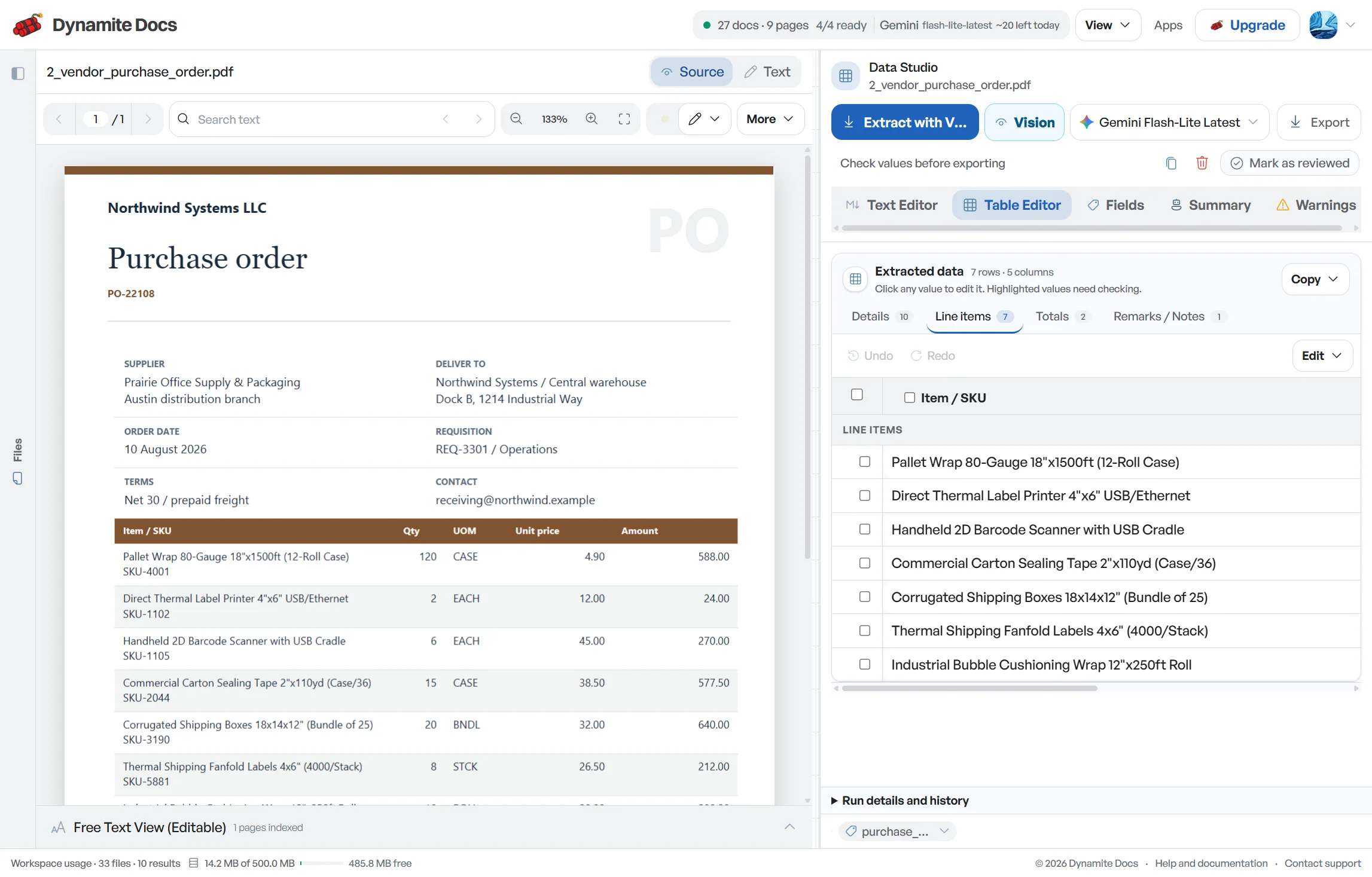
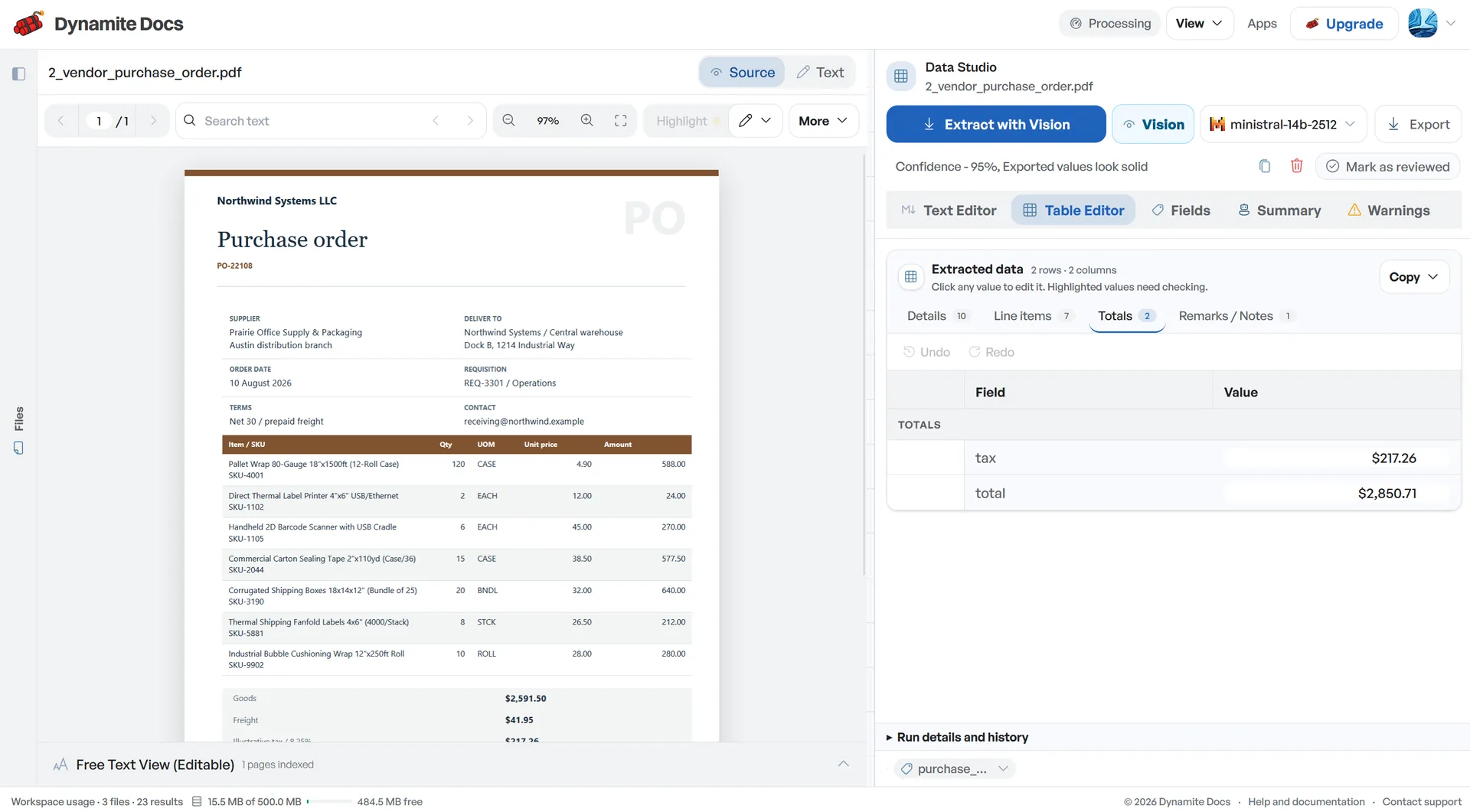
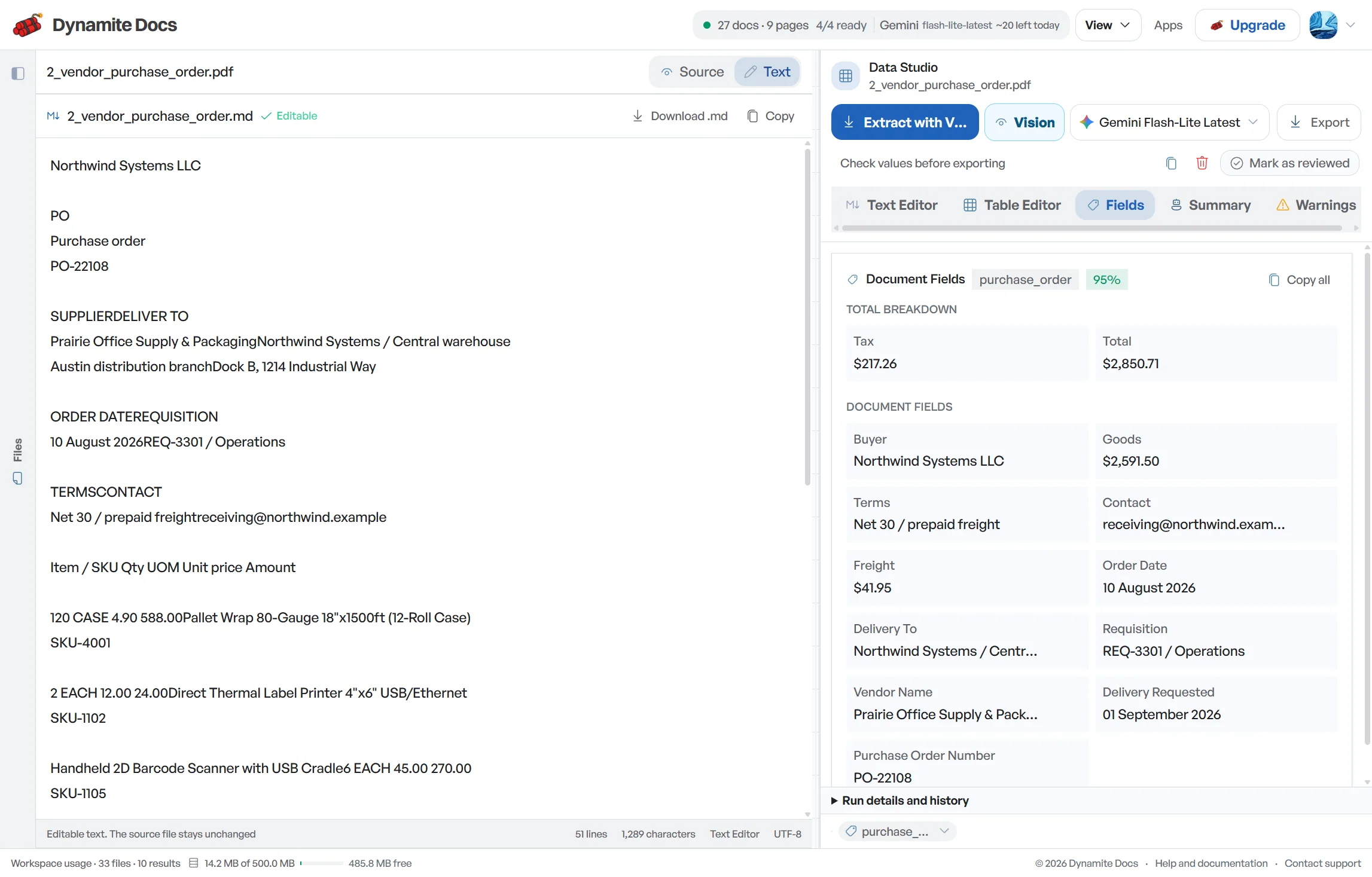
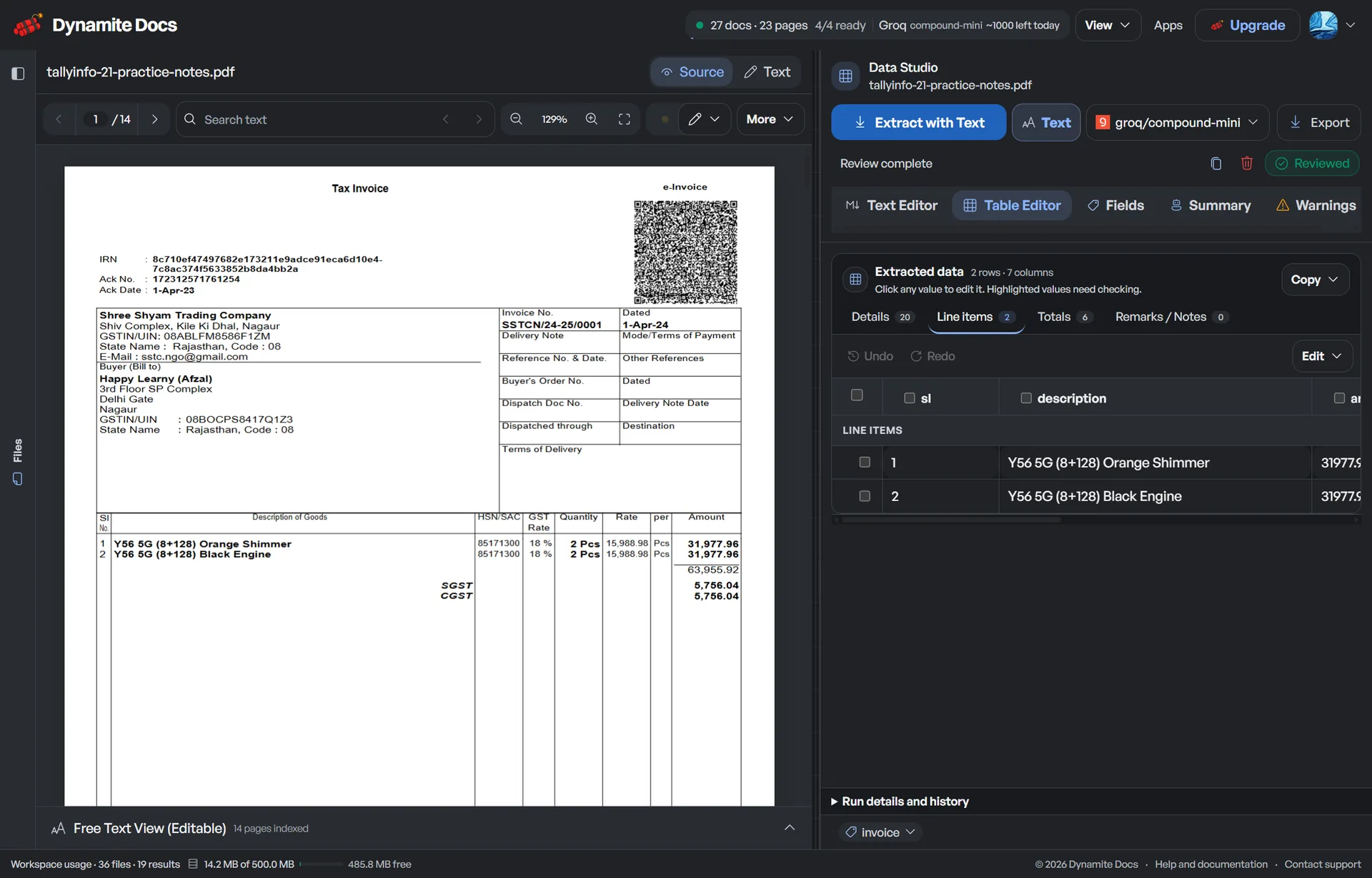
The example below uses the real invoice review view. Supplier, invoice number, line items, tax and total remain visible beside the original document while you correct the table.
Sample workbook rows
The Line Items sheet keeps one row per invoice item. The Document Fields sheet holds supplier, buyer, invoice number, dates, currency, purchase-order reference, subtotal, tax, and total once. Repeat those values on item rows only when the receiving import requires a flat table.
| Invoice | Description | Qty | Rate | Tax | Amount |
|---|---|---|---|---|---|
| INV-0842 | A4 paper, 10 reams | 10 | 42.00 | 33.60 | 453.60 |
| INV-0842 | Toner cartridge | 2 | 185.00 | 29.60 | 399.60 |
| INV-0842 | Office chair | 3 | 520.00 | 124.80 | 1,684.80 |
Treat invoice conversion as payable data
Confidence
Review supplier identity, bank details, invoice number, tax, currency and total even when confidence is high. Plausible values can still land in the wrong column.
Accuracy
Line descriptions that wrap, discounts, unit measures, credit notes and multi-page tables need more checking than a clear invoice header.
Failure state
Unreadable scans, missing pages and password-protected PDFs can block extraction. A workbook should not be exported when rows or required totals are missing.
Product boundary
The converter creates review-ready data. It does not approve an invoice, post a voucher, pay a supplier or perform full three-way matching.
Keep the invoice path visible
Try one invoice with browser-only file handling. Paid cloud storage is optional and follows the retention and deletion controls published by Dynamite Docs.
Every plan can use a chosen provider key. Free and Hobby runs use monthly PE; Pro and Ultra runs do not. Hobby, Pro and Ultra can route model inference to local Ollama instead.
Questions about invoice to excel
Does the Excel file include invoice line items?
Yes. Repeating products or services become rows when the invoice contains legible line items. Review wrapped descriptions, quantities, discounts and taxes before download.
Can I convert a scanned invoice to Excel?
Yes. Scanned PDFs and invoice images use visual extraction. Clear originals work better than compressed screenshots or photos with glare.
Can I send the same invoice data to Google Sheets?
Yes. After review, you can push the extraction to Google Sheets instead of downloading an Excel workbook.
How to extract invoice line items without building supplier templates?
Visual AI models identify repeating item grids, descriptions, rates, quantities, and line totals directly from document geometry to extract invoice line items, eliminating the need to configure coordinate templates for each vendor.
Choose the next document task
- Recurring invoice extraction workflow: Process mixed suppliers with review and saved patterns.
- Invoice OCR for scans and photos: Understand recognition and line-item review risks.
- Free invoice OCR tool: Try a single invoice in the browser.
- General PDF to Excel converter: Use a broader workflow for reports and non-invoice tables.
- Push invoice rows to Google Sheets: Create a new tab from a reviewed extraction.
- Invoice extraction API: Submit and retrieve invoice data in a software workflow.
- GST invoice to Excel: Use GST-specific columns for GSTIN, HSN or SAC, and tax components.
- Invoice line-item guide: Check wrapped rows, repeated headers, discounts, and page joins.
- Invoice processing plan limits: Compare PE, storage, jobs and integrations.
Related Workflows
Convert an invoice or compare processing, storage and integration limits.