PDF extraction software
Extract nested tables and key-value fields from complex PDF documents
Turn a PDF into fields and tables you can inspect, correct and send somewhere useful.
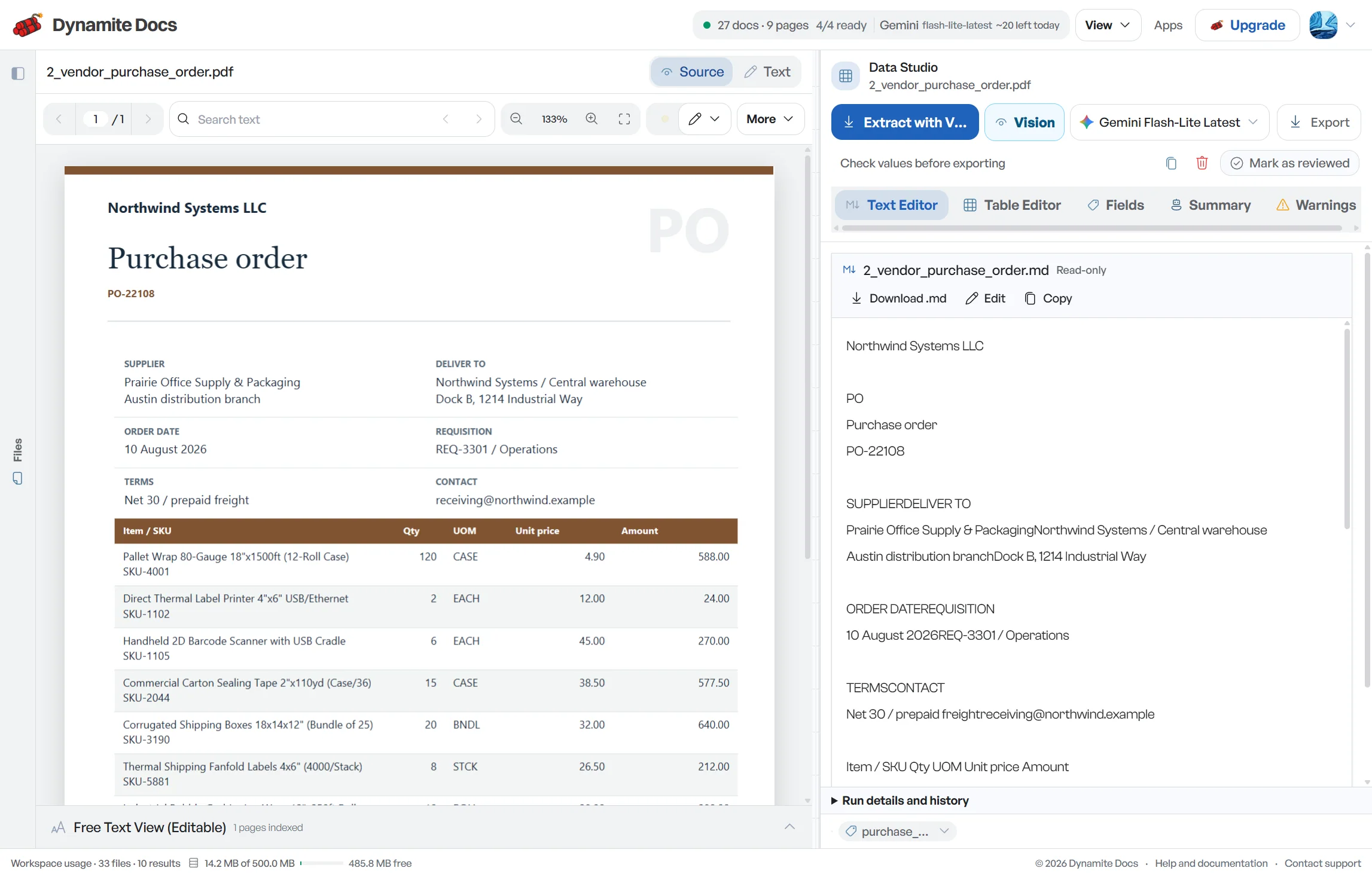
A PDF may contain selectable text, scanned page images, positioned table cells, or all three. Dynamite Docs reads the text layer when it is available and uses the selected vision-capable model for image-only pages. It proposes named fields and table rows rather than returning only a text transcript.
Keep the PDF beside the result, check uncertain values, and fix rows that split across page boundaries before exporting to Excel, CSV, JSON, Google Sheets, or your API.
Try your PDF. Upload a PDF in the browser. Create an account only when you want to save or export.
PDF inputs this workflow handles
- Digital PDFs: Use the embedded text layer before calling a vision model.
- Scanned PDFs: Read image-only pages with OCR and document layout.
- Mixed PDFs: Handle native pages, scans and attachments in one file.
- Multi-page tables: Join continued rows while checking repeated headers and totals.
Fields and tables stay separate
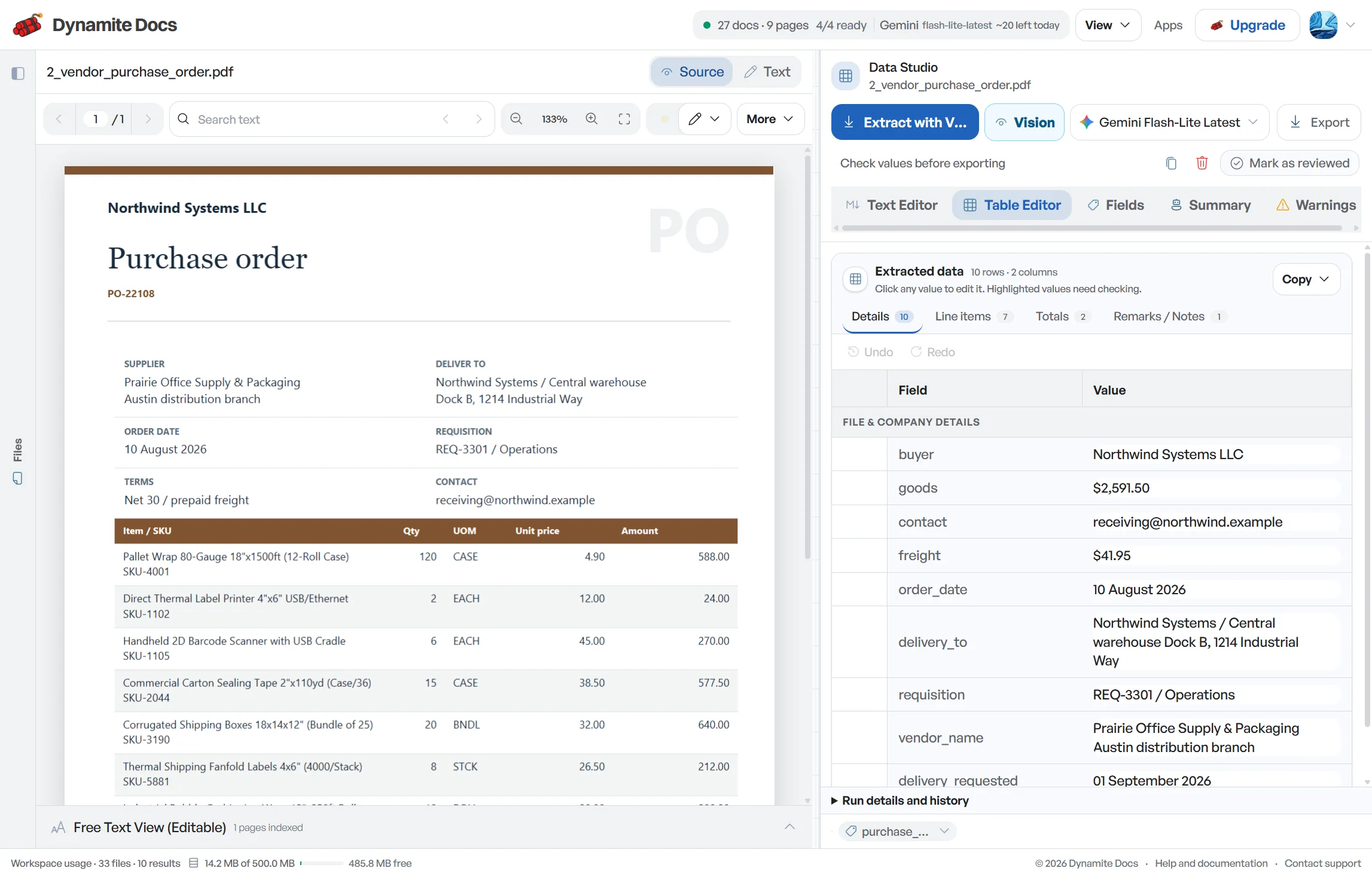
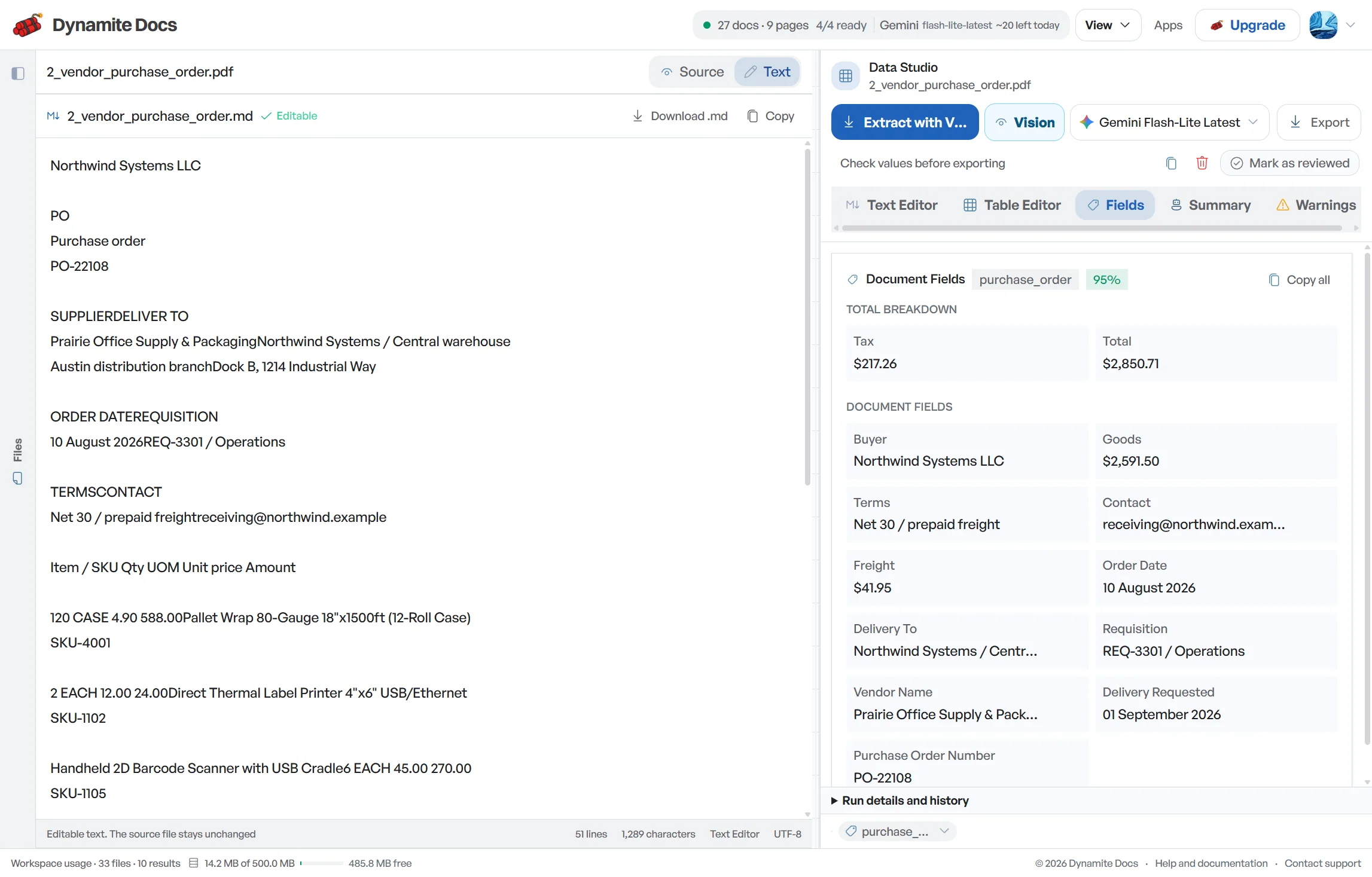
The schema follows the document. Named values remain document fields, while repeating records become table rows.
- Document fields: Report name, account, period, reference
- Table headers: Date, description, quantity, amount
- Repeating rows: One object per transaction or line item
- Dates and numbers: Normalized values for sorting and calculation
- Source context: Original page stays available during review
- Confidence: Field and cell signals for focused checking
From file to reviewed result
- 1. Inspect the PDF. Detect text, scanned pages, page count and layout before choosing the reading path.
- 2. Propose fields and repeating rows. The selected model identifies likely fields, table headers, and repeating rows without a coordinate template for every supplier layout.
- 3. Review the source. Compare uncertain cells with the original page and correct the result in place.
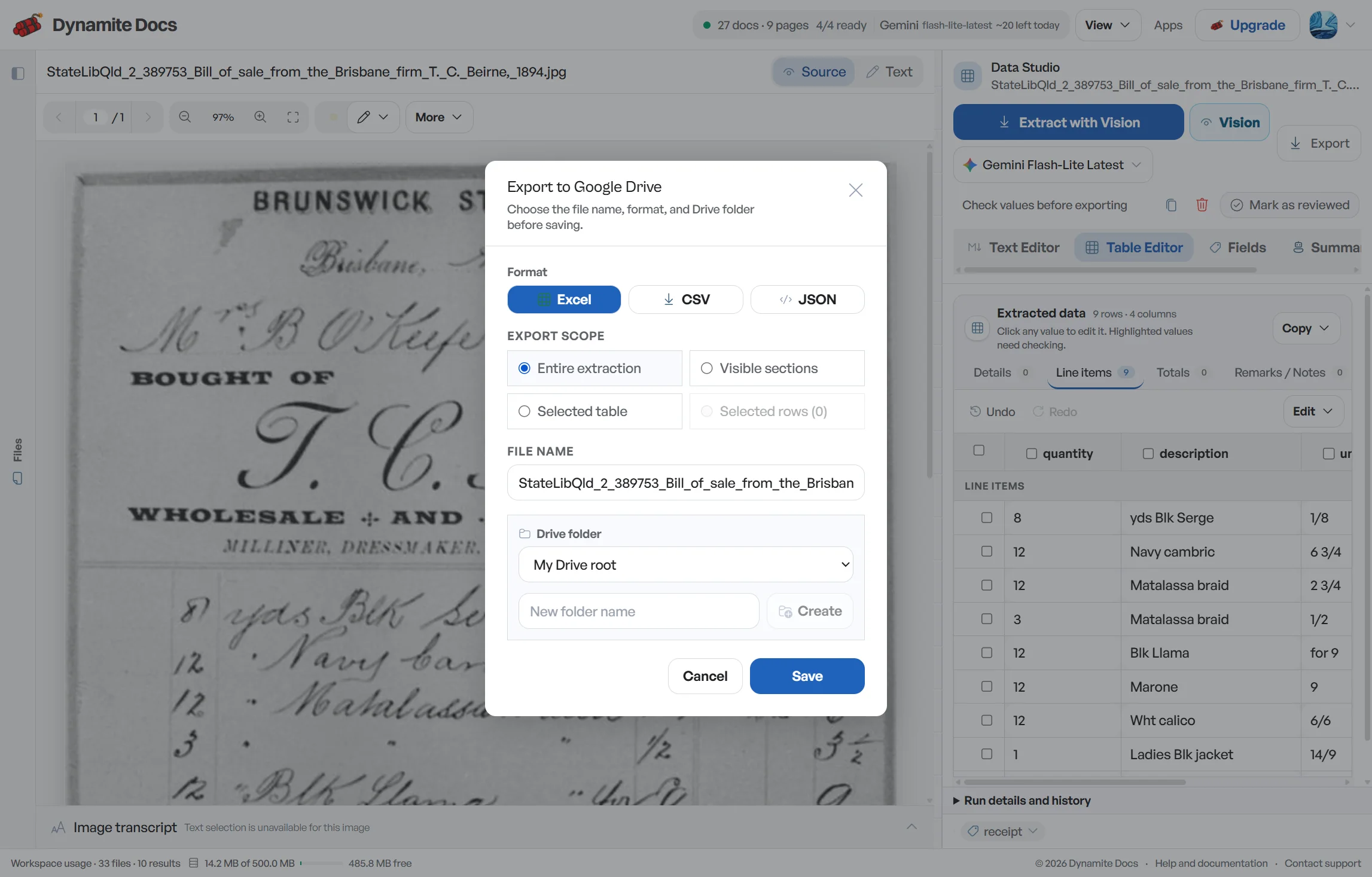
- 4. Choose an output. Download Excel, CSV or JSON, push to Sheets, or deliver reviewed data through the API.
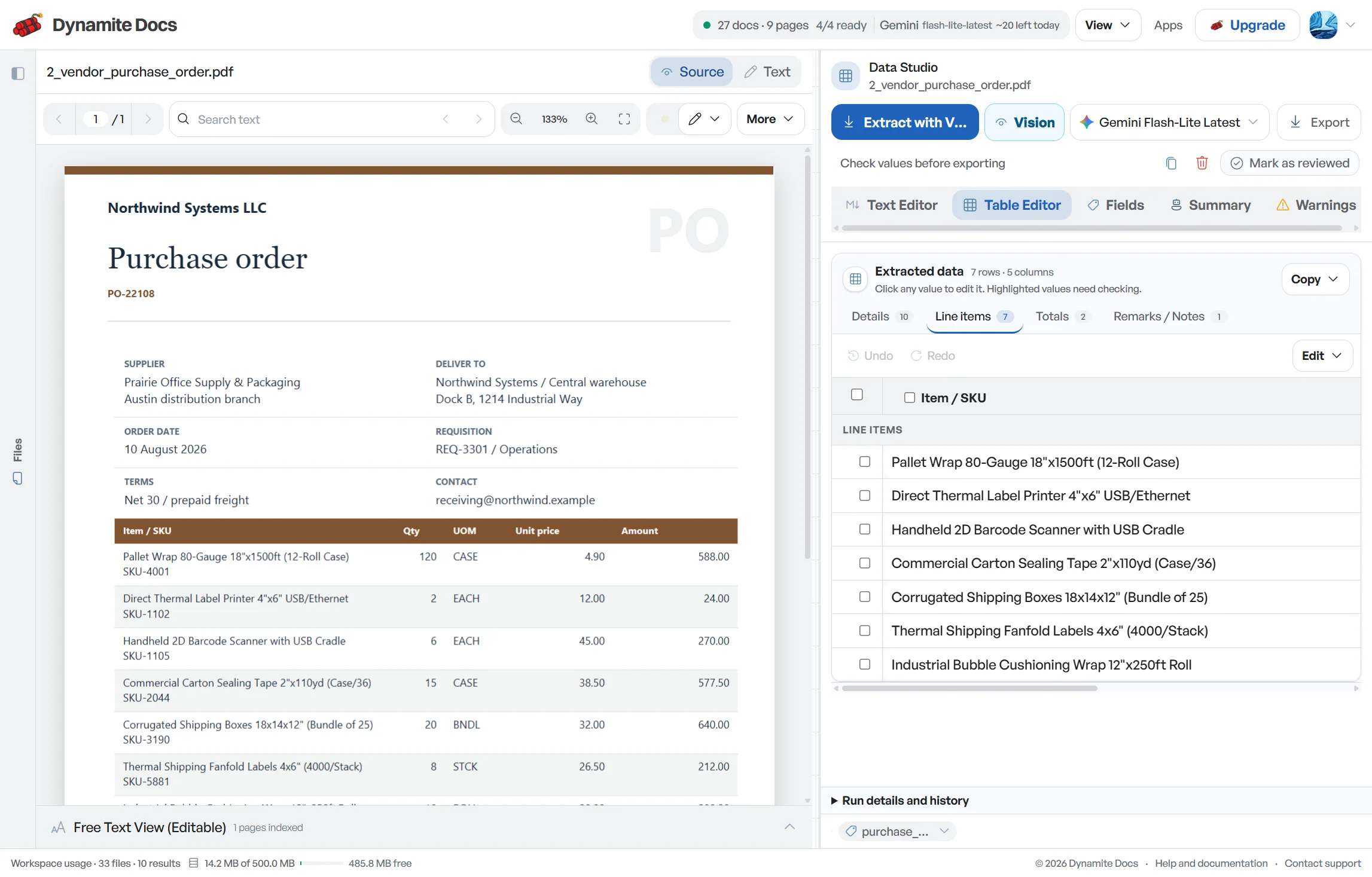
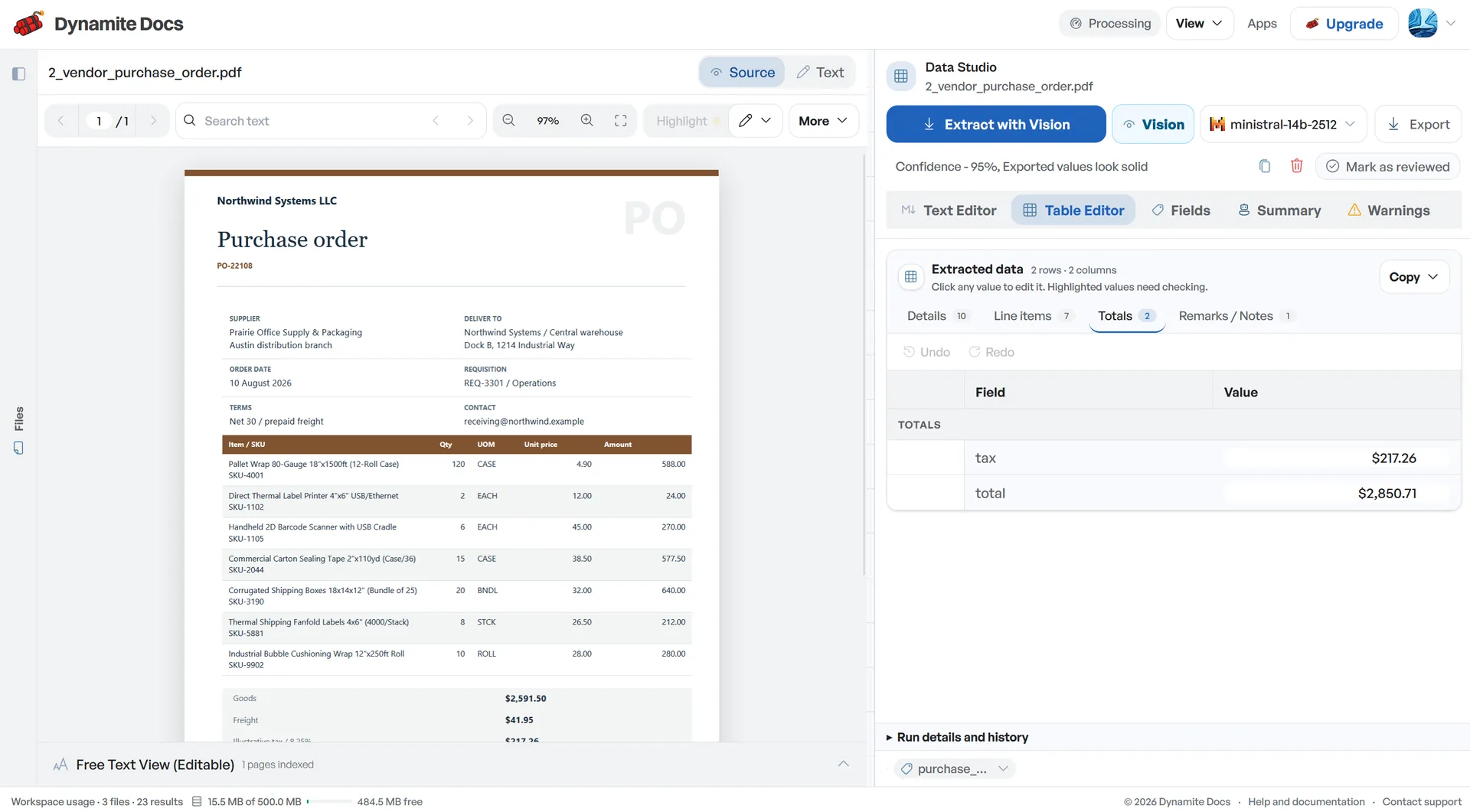
See the source and extraction together
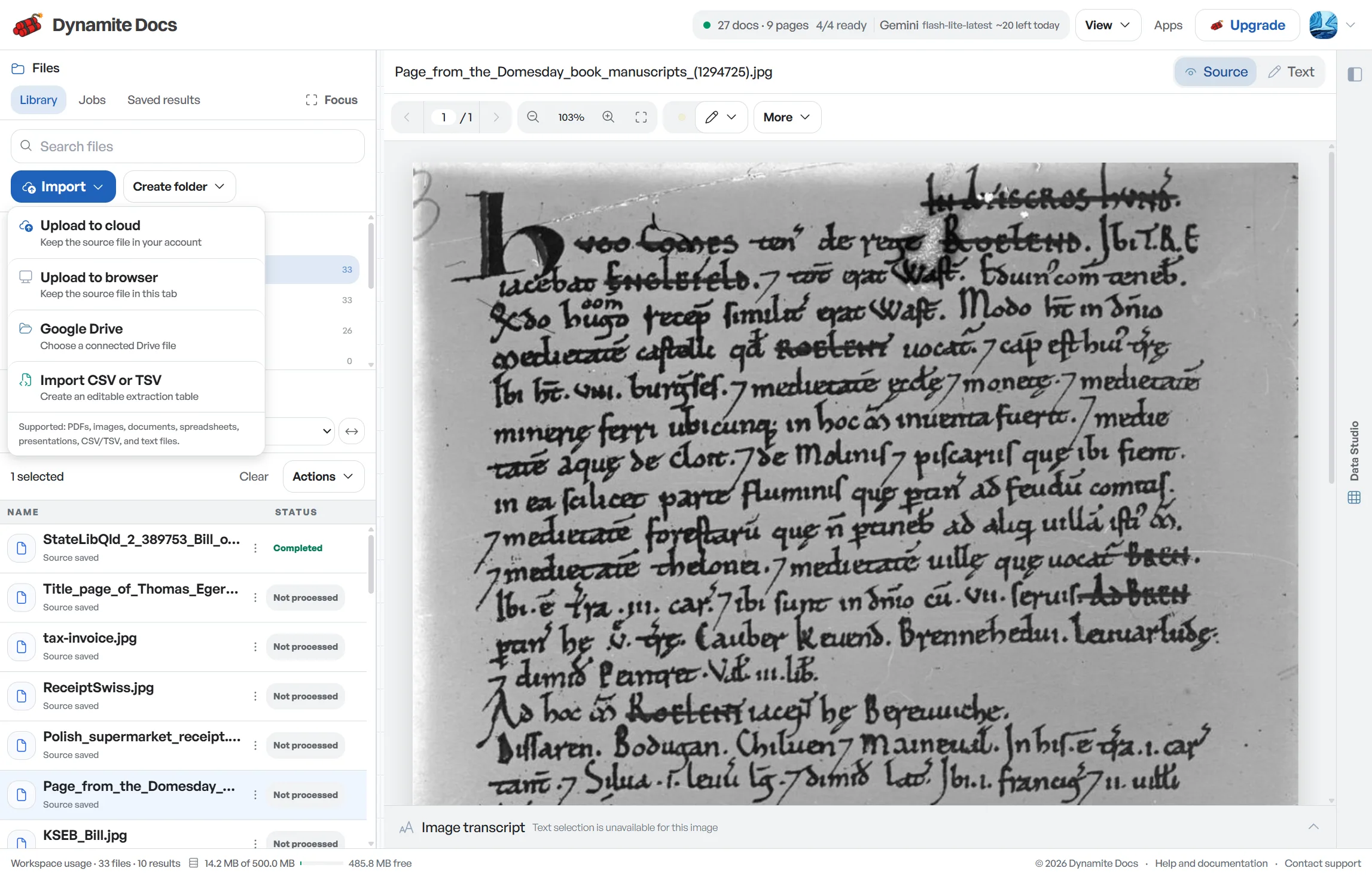
The workspace keeps the PDF beside the extracted fields. Corrections stay in the table and can become reusable patterns for later files with the same layout.
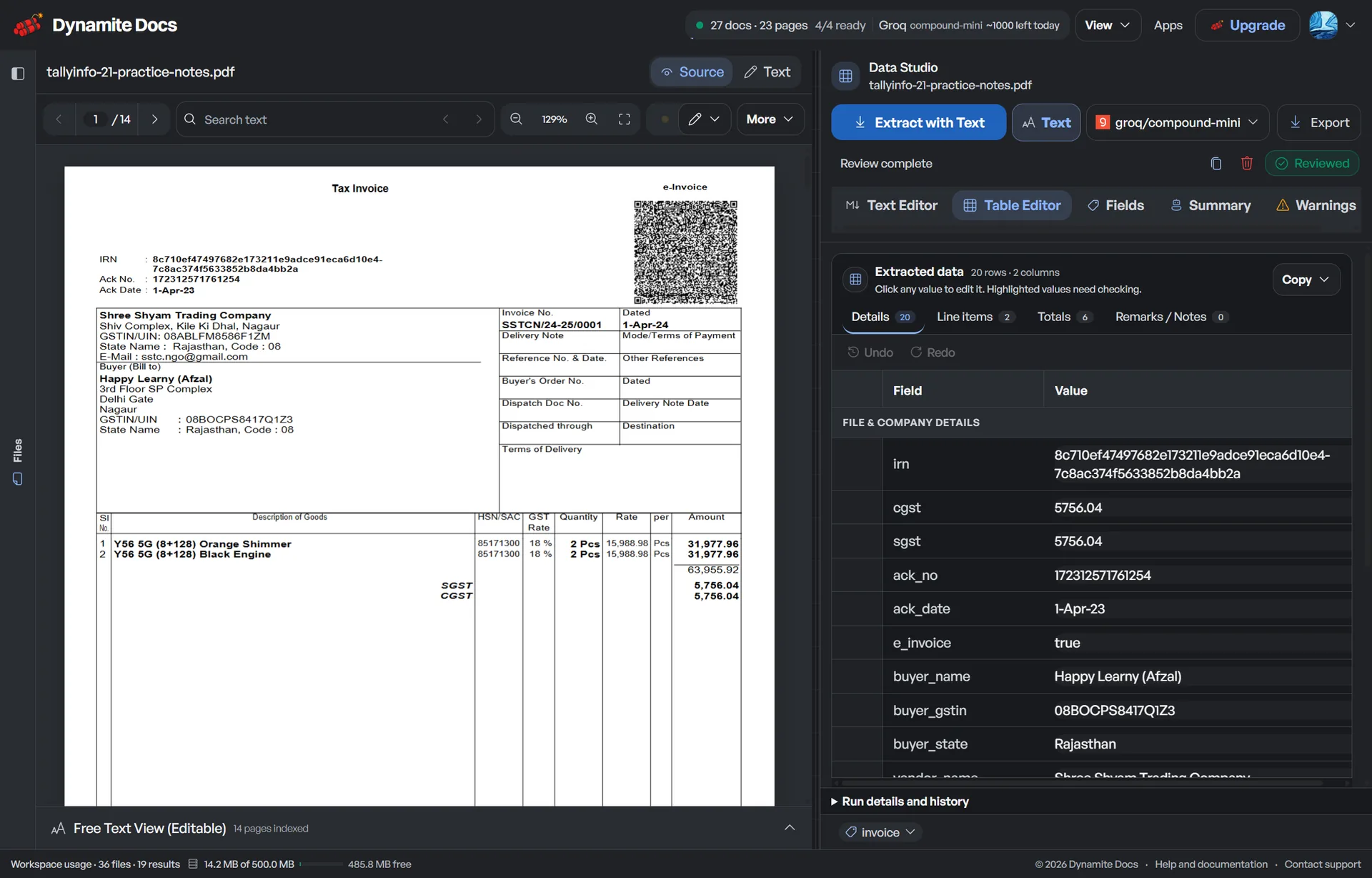
One PDF, several useful outputs
The same reviewed result can feed a workbook, a flat file or a software integration. Choose the output after checking the structure.
| Output | Keeps | Best used for |
|---|---|---|
| Excel | Sheets, tables and document fields | Review and workbook handoff |
| CSV | One flat table per download | Imports and simple analysis |
| JSON | Objects, arrays and data types | APIs and automation |
| Google Sheets | Reviewed rows in a new tab | Shared operational work |
A clean table still needs a document check
Confidence
Confidence signals narrow the review, but they do not prove a value is correct. Check identifiers, money, dates and required fields against the page.
Accuracy
Digital text avoids OCR character errors, yet reading order and table structure can still be ambiguous. Scans add blur, rotation, compression and handwriting risk.
Failure state
Encrypted files, damaged PDFs, missing pages and unreadable scans can fail before extraction. Unlock protected files and use the original scan where possible.
Product boundary
Dynamite Docs extracts and structures document data. It does not reproduce charts, decorative page layout or every merged cell as a visual copy.
Choose the processing path that fits the document
Anonymous and Free files stay browser-only. Paid plans add cloud storage, with deletion and retention controls described in the product policies.
Every plan can connect provider keys. Free and Hobby runs use monthly PE; Pro and Ultra runs are unlimited. Hobby, Pro and Ultra can use the signed local Ollama companion for model inference on the user's computer.
Questions about pdf extraction software
Does PDF extraction work on scanned PDFs?
Yes. Image-only pages use OCR and visual document extraction. Clear, correctly oriented scans need less correction than compressed or skewed pages.
Is PDF extraction the same as copying PDF text?
No. Copying returns reading-order text. PDF extraction identifies named fields, tables, rows and data types that can move into a spreadsheet or API.
Can I extract more than one table from a PDF?
Yes. The result can contain several tables. Review their headers, page breaks and carried totals before combining or exporting them.
How to extract tables from multi-page PDFs without losing column headers?
Dynamite Docs joins continuous table rows across page boundaries, identifies repeated page headers, and reconciles carried subtotals into one clean table without duplicate header rows.
How does document extraction handle a new PDF layout?
The selected model reads labels, nearby values, table headers, and repeated row structure from the page. Review the first result carefully, then save confirmed corrections as a pattern for later files with the same layout.
Choose the next document task
- AI document extraction software: Extract structured fields and tables from PDFs, scans, and images.
- AI PDF data extraction: Extract PDF fields and tables into Excel, CSV, or JSON.
- PDF OCR for scanned pages: How image-only and mixed PDFs are read.
- Table OCR and row recovery: Checks for columns, wrapped rows and page breaks.
- PDF to Excel converter: Turn a reviewed PDF table into a workbook.
- PDF to CSV converter: Create a flat file for imports and analysis.
- PDF to JSON converter: Keep objects, arrays and developer-friendly types.
- Document extraction API: Submit documents and retrieve structured results in code.
- Private document AI controls: Compare browser, cloud, BYOK and local processing.
Related Workflows
Try your PDF or compare processing, storage and integration limits.