Bulk PDF processing for accounting documents
Bulk PDF processing extracts data from many stored PDFs in one background run instead of one file at a time. In Dynamite Docs, you add files from your library to a named job, run it, and track each file as it completes or fails. Every document is extracted on its own, so one unreadable file does not stop the rest, and each result waits for review before export.
By Dynamite Docs. Published . Updated .
Export directly to your accounting software


Sample commercial invoice
Source document(drag to dropzone)Page 1
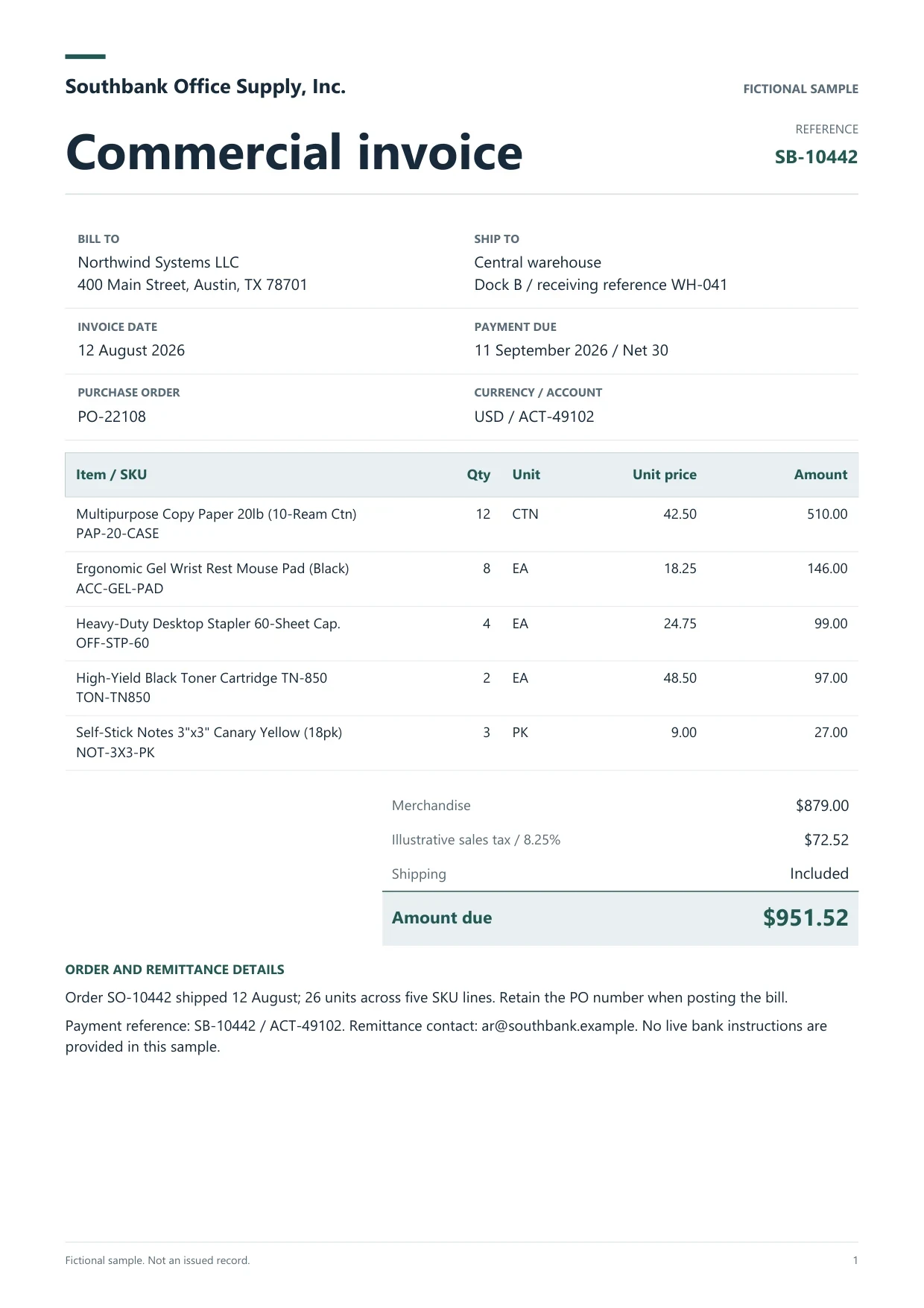
Sample extracted data3 fields
- Invoice number
- SB-10442
- Invoice date
- 12 August 2026
- Total due
- $951.52
Answer in 30 seconds
Run bulk PDF processing in Dynamite Docs: add stored invoices and statements to a named job, track each file, retry failures and review results before export.
How bulk PDF processing works

Store the PDFs in your library
Upload the batch on Starter or above so the originals are kept in cloud storage. Jobs only run on stored files, up to 50 MB each.
Add the files to a named job
Select the files in the Library and choose Add to job. Name the job by client, supplier or period so the results are easy to find later.
Run the job and check each file
In Jobs, press Run job. The run continues in the background. Open completed files to review them, and use Retry for files that failed after a temporary provider error.

Review and export the results
Results land in a View Extractions folder named after the job. Check warnings beside each source, then export to CSV, JSON or Excel, push to Google Sheets, or receive a signed webhook.
PDF batches suited to a job
 Supplier invoice batches
 Bank and card statements
 Scanned PDF archives
 Long multi-page reports
What a bulk job tracks for each PDF
 Dynamite Docs
- Job name
- Northwind AP, October 2026
- Source file
- inv-0902-scan.pdf
- Pages
- 3
Each file in a job keeps its own record:
Plans that include bulk jobs
Jobs are included on Starter, Pro and Scale subscriptions. Starter includes 500 MB of cloud storage and 100 PE a month, Pro 2 GB and 1,000 PE, and Scale 10 GB and 5,000 PE. Business prepaid passes also include jobs, from 50 files per job on Business to 250 on the Scale pass. Free does not include jobs and keeps files in the browser.
Starter and above also include REST API tokens and signed webhooks, so a completed extraction can notify your own system. See plans and processing limits for current numbers.
Questions, answered
Starter allows 25 files per job, Pro 200 and Scale 500. You can run more jobs; Starter allows 10 active at once, Pro 25 and Scale 50.
The other files keep running. Each file has up to three automatic attempts. If it still fails, check the error, replace a locked or damaged PDF if needed, and use Retry on the job.
No. Only successfully processed pages use PE, at 1 PE per page.
Jobs need stored originals. On Free, files stay in the browser and are processed individually instead of in a job.
Extraction guides

Related document workflows

From the blog
How to run and review a bulk invoice extraction job
Run a bulk invoice extraction job in Dynamite Docs. Select stored files, check run status, retry failed invoices, and open results for review.
How to extract multi-page PDF tables and join continued rows using AI
Learn multi-page PDF table extraction with AI using Dynamite Docs. Join continued rows, remove repeated headers, and check the table against source pages.
How to extract data from scanned and image-only PDFs using AI
Learn how to extract scanned PDF data with AI using Dynamite Docs. Prepare the scan, review fields and tables, then export rows checked against the source.
Run a 20-file pilot job
Store 20 mixed PDFs, add them to one named job, run it, and review every result before you queue the full month.