




01
Infer the structure
The model separates document fields, repeating rows, totals, and notes based on the file in front of it.
Recover borderless or photographed tables without redrawing every cell.
28-day Free trial · 25 page-equivalents · 5 hosted pages/document
Try extraction without an account. Sign up free to download CSV, Excel, or JSON.
Excel, CSV and JSON downloads are included on Free after signup, within Free plan limits. See Free limits
Anonymous originals stay in browser storage, not cloud file storage. Extraction may send document content to the selected AI provider.
table photo or scan
Free · No account required
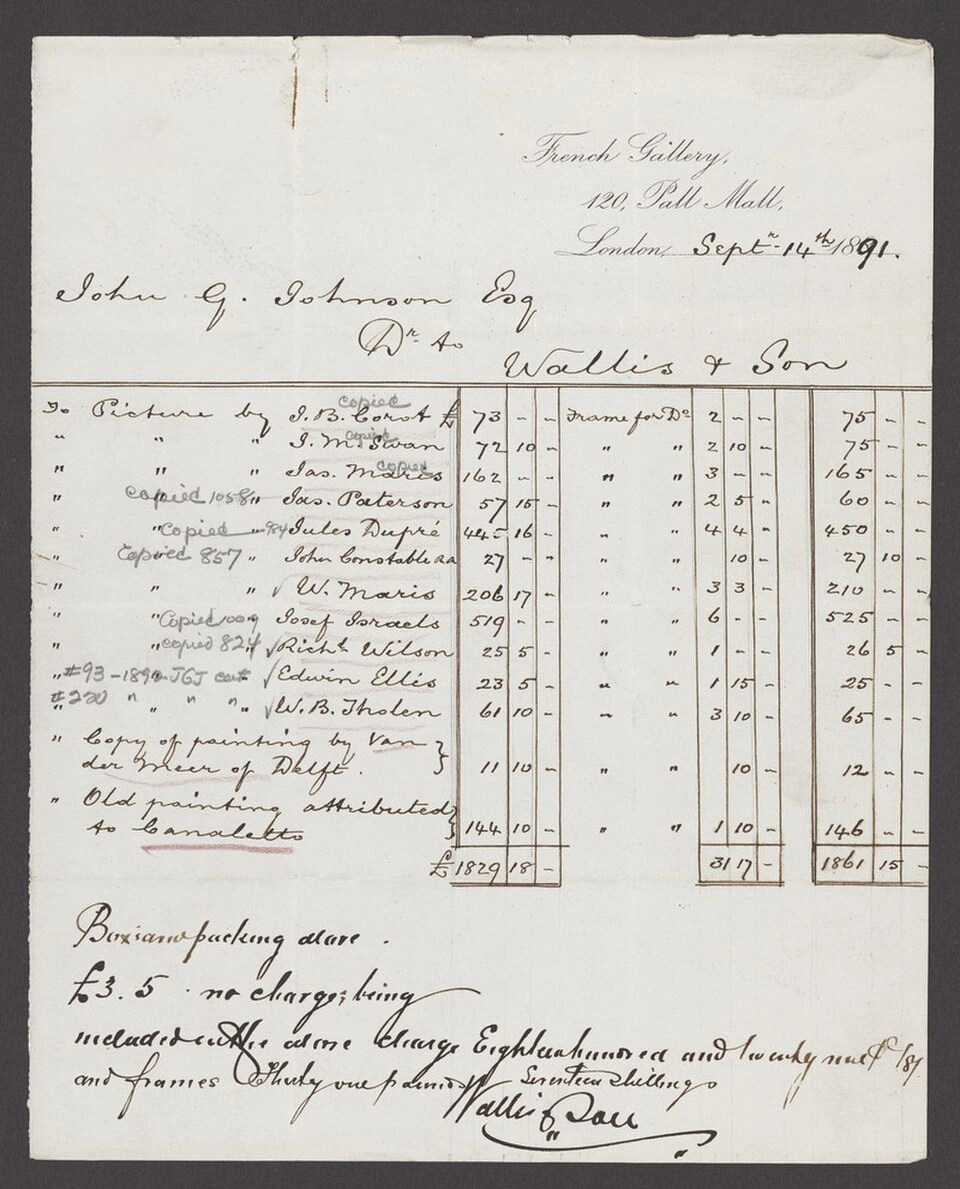
Sample the French Gallery Scanned Invoice
Source document(drag to dropzone)Page 1
Sample extracted data3 fields
Download or stream clean structured data to
Content reviewed
Upload a page that contains a table in a photo, screenshot, or scan. Table OCR infers columns from alignment and spacing, then opens the grid beside the source for review before export. Start with the table that has a printed total or row count you can verify after download.
The full workflow
 Dynamite Docs
01
The model separates document fields, repeating rows, totals, and notes based on the file in front of it.
02
The source remains visible while you edit cells, rename columns, inspect warnings, and mark the result reviewed.
03
Download OCR table rows, or move a recurring workflow into Google Sheets, Drive, webhooks, or the API.
Dynamite DocsChoose the AI route
Open AI & Processing, choose Connect Provider, and pick a provider. The setup screen links to that provider's key page. Create a free key where the provider offers one, paste it into Dynamite Docs, verify it, then select a model for the run.
Your provider key is encrypted before it is stored.
Switch between hosted, own-key, privacy-restricted, and local models.
The same source-first review screen works whichever route you choose.
Use table OCR for borderless or photographed tables. Photograph the page square-on with even light and keep every column header inside the frame. Use the PDF table extractor for native PDFs. Use image to Excel when the whole page is one financial schedule rather than an isolated grid. For borderless PDF pages, compare table OCR with the borderless table guide.
Upgrade path
This free converter processes a single document at a time in memory. When you need to process folders of files, export to clean spreadsheets, or automate handoffs, choose the right tier:
Test single files directly in your browser tab without creating an account.
Keep documents saved, export to Excel, and remember column rules.
Batch processing, direct Google Sheets sync, webhooks, and unlimited BYOK.
The 28-day Free trial includes 25 page-equivalents per month shared by hosted and own-key processing, 5 hosted pages per document, and 5 documents per day. Anonymous trials have separate daily limits.
Both can export Excel. Table OCR targets grid-structure searches. Image to Excel owns broader photo-to-spreadsheet intent.
No. Alignment and repeated patterns can define columns, but borderless tables need more review.
Upload PDF, PNG, JPG, JPEG, or WebP files up to 50 MB. Use the highest-resolution original instead of a compressed chat attachment.
Count detail rows on the source, recalculate any printed subtotal, and compare both with the export. Remove section headers that OCR captured as data before importing into another system.
Starter and above add stored files, batch jobs and connected exports. Email intake requires Pro or Scale. File and processing limits depend on your plan.
Can we save optional cookies?
Essential cookies keep you signed in. Optional analytics and masked session replays help diagnose errors. Change your choice in Cookie settings. Privacy policy.